

DX System Proposal Generation -- User Manual
1. Product Overview
1.1 Introduction
The DX System Proposal Generation is an intelligent auxiliary tool designed specifically for corporate digital transformation. This system aims to address the disconnect between strategy and technology encountered during enterprise transformation. Through a highly automated proposal generation mechanism, it assists users in rapidly decomposing business requirements and outputting product design proposals that possess both forward-looking vision and practical feasibility.
1.2 Core Functions
The system integrates requirement analysis, intelligent generation, and collaboration management functions, primarily including:
- Precise Requirement Modeling: Supports structured entry of customer industry background and core challenges.
- Intelligent Proposal Generation: Rapidly generates complete proposals based on input information.
- Collaboration Management: Supports sharing via proposal links/emails, favorites management, and historical record tracing.
2. Preliminary Preparation
Before utilizing this system to generate proposals, please ensure the following preparatory steps are completed to achieve optimal generation results:
2.1 Information Organization
Prior to using the system, it is recommended that you organize the following key information in advance:
- Customer Profile: Clearly define the specific industry to which the target customer belongs (e.g., Manufacturing, Retail, Finance, etc.).
- Core Pain Points: Summarize the major business challenges or technical bottlenecks currently faced by the customer (e.g., cumbersome processes, data silos, slow response times, etc.).
- Specific Constraints or Preferences (Optional): If there are special technical architecture requirements, compliance standards, or functional priorities, please prepare them in advance.
2.2 Environmental Requirements
- Network Environment: A stable internet connection is recommended to ensure the efficient execution of generation tasks.
- Browser Settings: The latest versions of modern browsers such as Chrome, Edge, or Firefox are recommended. Ensure that pop-ups are allowed (for preview or download functionalities).
3. Operational Procedures
This chapter provides detailed guidance on the complete operational steps from information entry to result output.
3.1 Entering Basic Information
Upon entering the main interface of the system, you will see the information entry area. Please fill out the form according to the following steps:
-
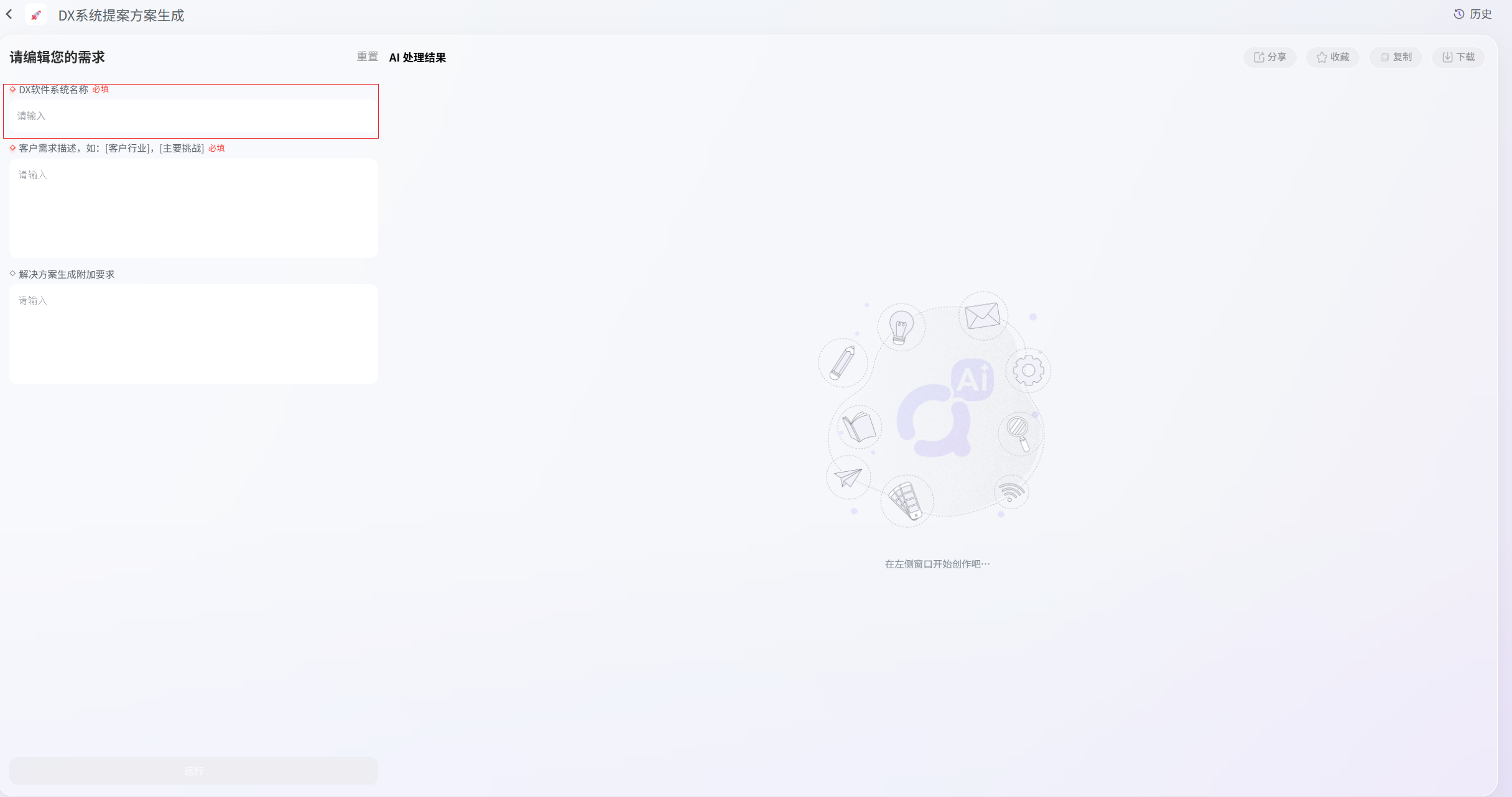
Enter DX Software System Name
- In the "DX Software System Name" input field, type the name of the proposal to be generated (e.g., Smart Manufacturing Supply Chain Management System).
-
Note: This item is mandatory and directly determines the theme of the proposal.
-
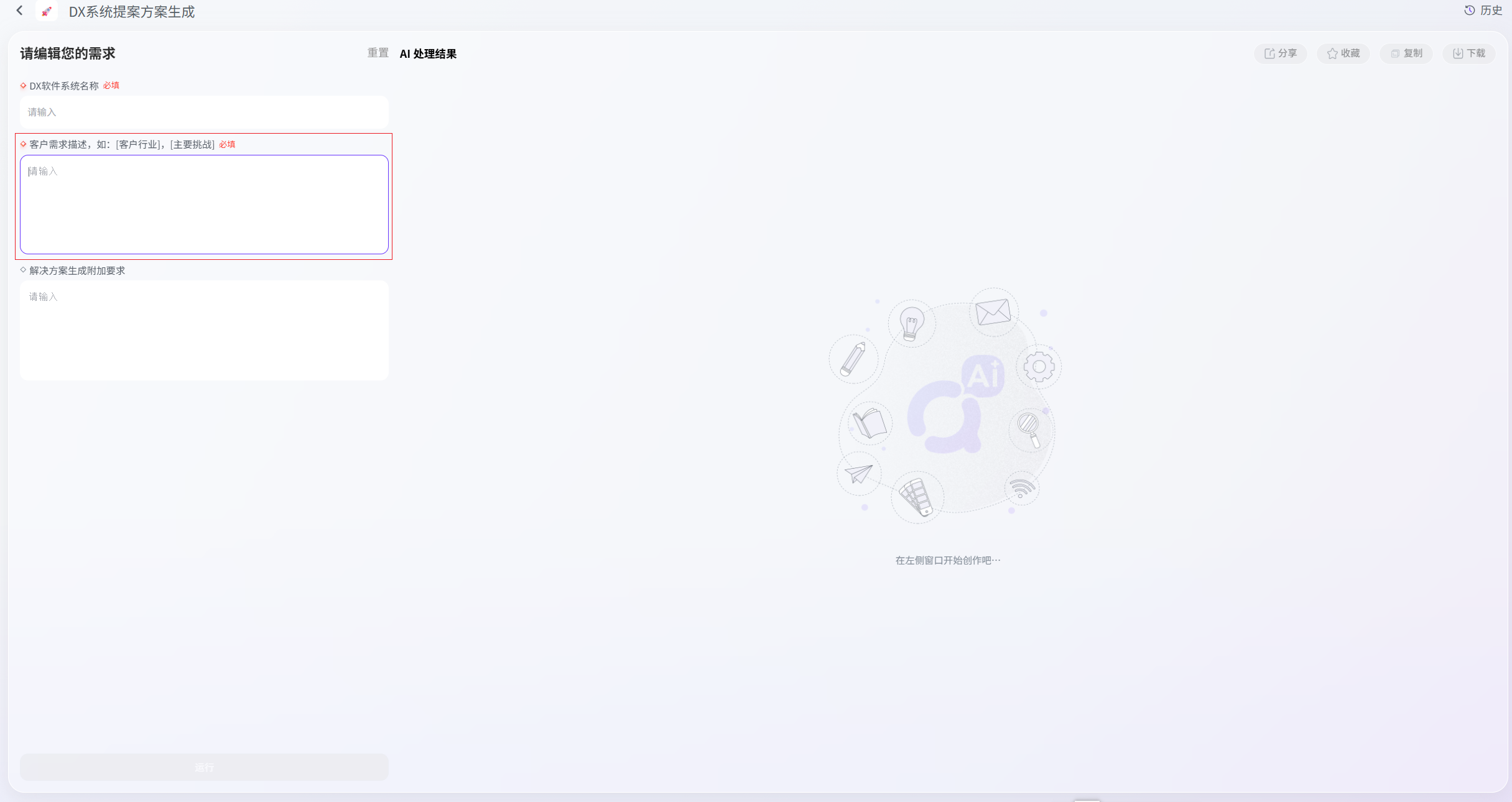
Describe Customer Requirements
- In the "Customer Requirement Description" text area, provide a detailed description of the customer's industry background and major challenges.
-
Note: This item is mandatory; the more specific the description, the more targeted the generated proposal will be.
【Reference for Filling Examples】 To assist you in better understanding how to fill out the form, two examples across different scenarios are provided below:
-
Example A: Retail Industry
- Industry: Chain New Retail
- Major Challenges: Offline store inventory data cannot be synchronized in real-time, leading to stockouts or overstocking; membership systems are fragmented, preventing unified precision marketing; consolidating sales data from various stores takes too long, affecting decision-making timeliness.
-
Example B: Manufacturing Industry
- Industry: Automotive Parts Manufacturing
- Major Challenges: Production equipment lacks IoT connectivity, with operations relying on manual inspections resulting in slow fault response; production scheduling relies on experience, leading to unbalanced capacity utilization; the quality traceability system is imperfect, making it difficult to quickly locate batch issues.
-
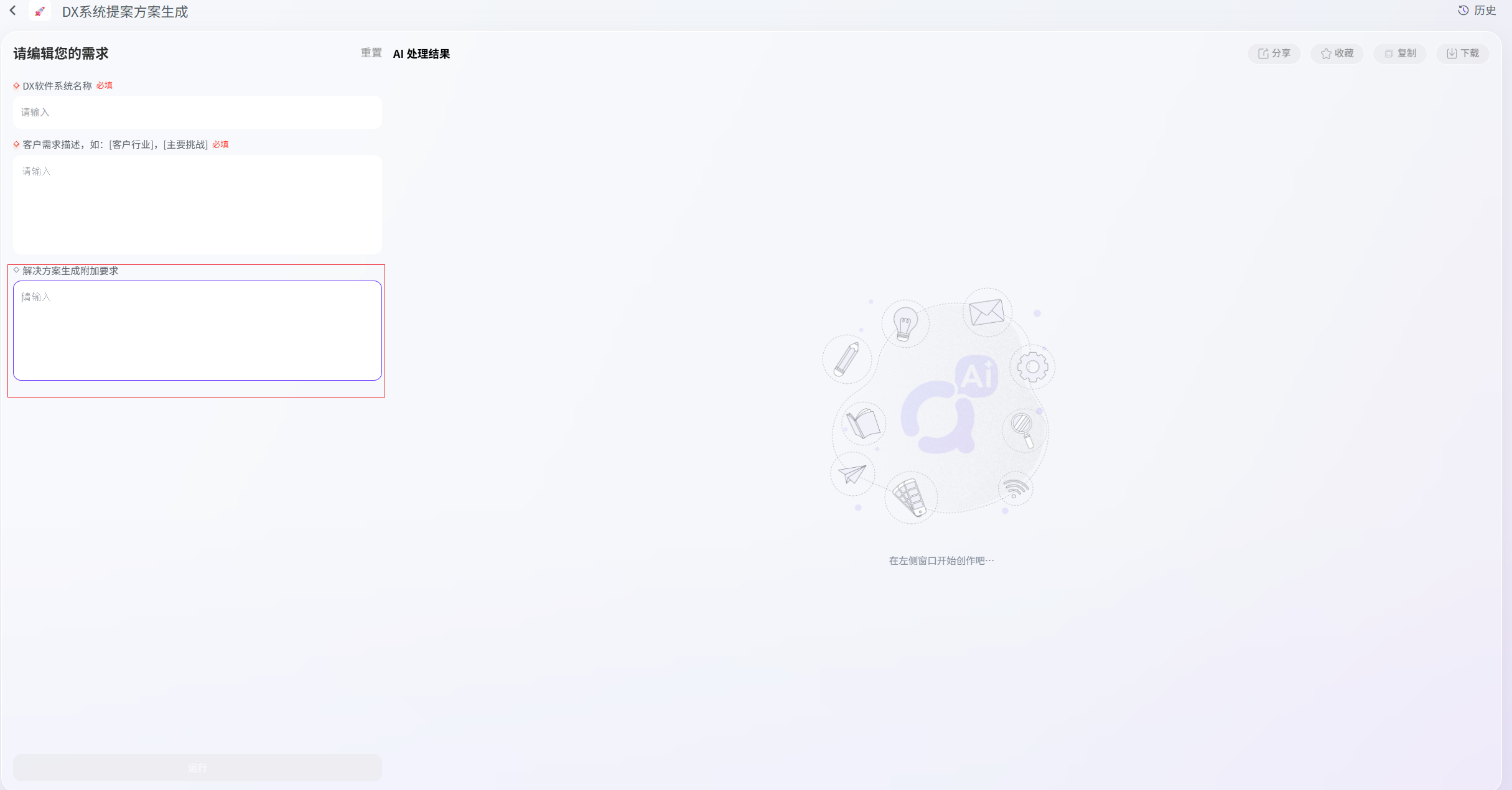
Fill in Additional Requirements for Solution Generation (Optional)
- If there are specific generation directions, please supplement them in the Additional Requirements for Solution Generation area. If there are no special requirements, this field may be left blank.
【Reference for Filling Examples】
- Example 1: Emphasize mobile adaptation; the proposal must include interaction design for mini-programs and highlight the data visualization dashboard module.
- Example 2: Must balance data security and compliance, citing ISO27001 standards; the system architecture must support private deployment.
- If there are specific generation directions, please supplement them in the Additional Requirements for Solution Generation area. If there are no special requirements, this field may be left blank.
3.2 Executing the Generation Task
After completing the information entry, perform the following operations to initiate the generation process:
-
Start Execution
- Click the "Run" button at the bottom of the interface.
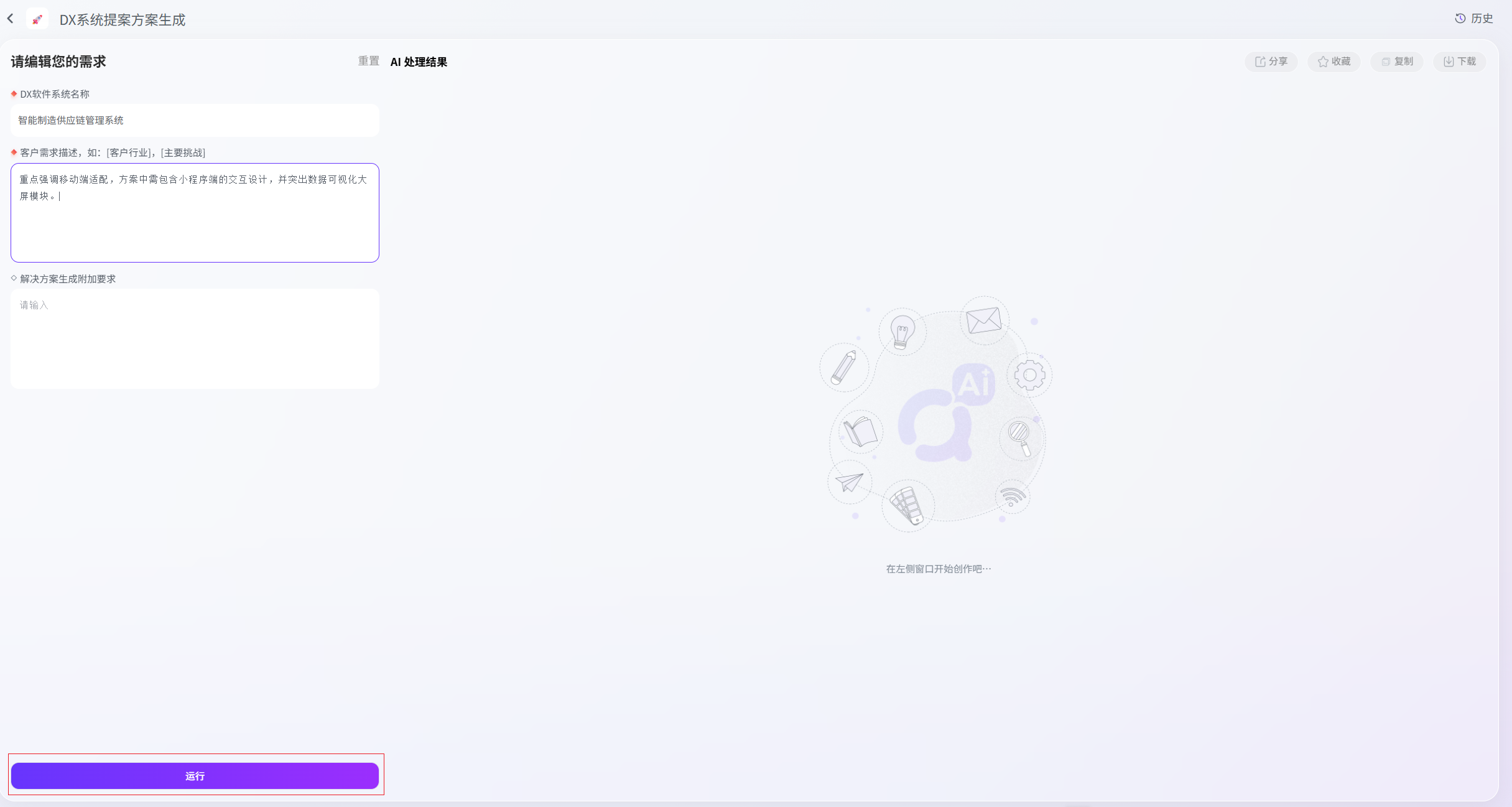
- The system will begin processing your requirements. At this time, the interface will display a "Generating..." animation; please wait patiently.
-
View Generation Results
- Upon task completion, the AI Processing Results area will display the generated output. You can preview the content within this area.
3.3 Result Interaction and Processing
Once generation is complete, you can preview, edit, export, or share the results. The system provides various toolbar buttons for your operation.
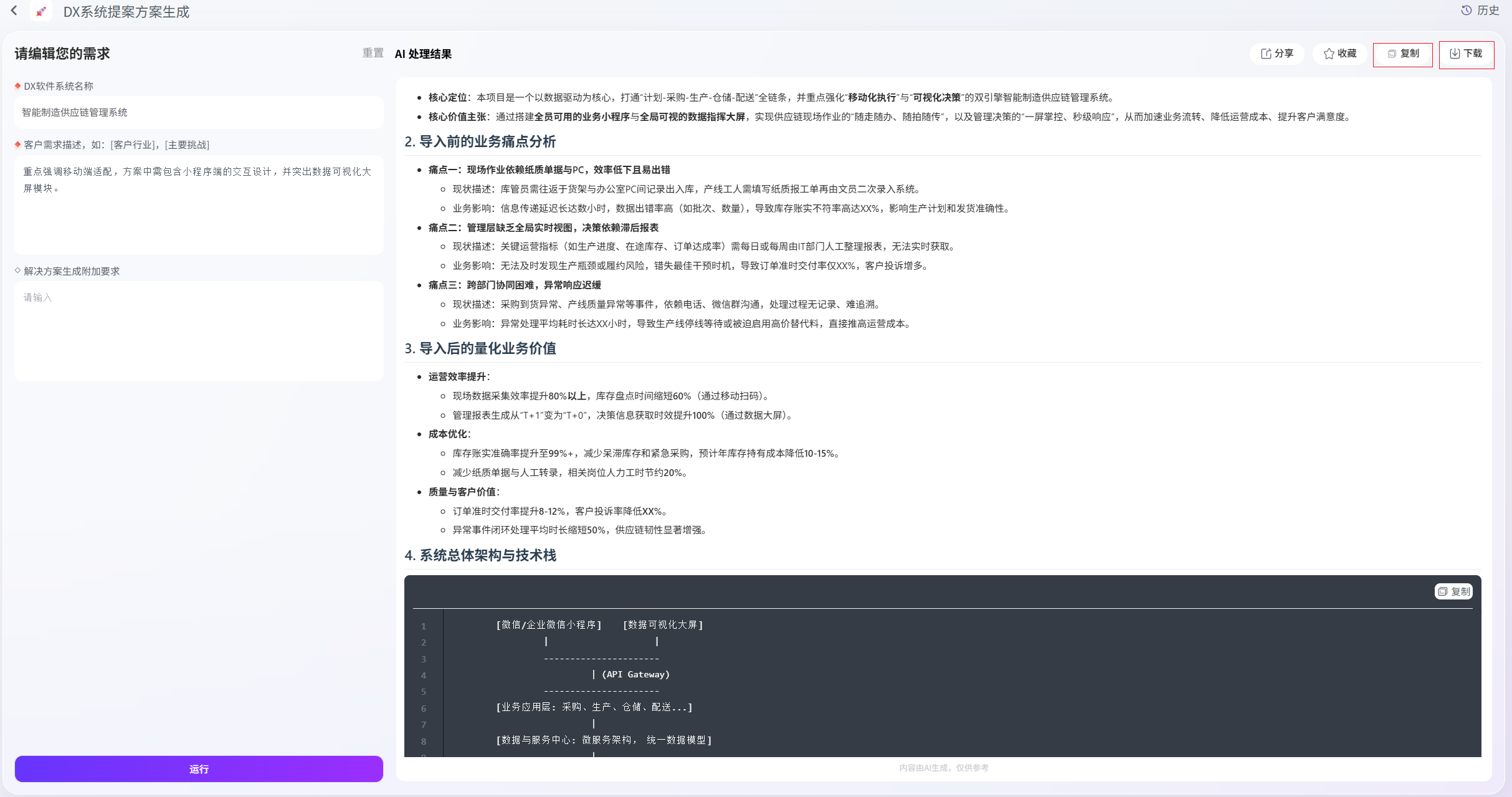
3.3.2 Content Copying and Document Download
- Copy Text: Click the Copy button. The system will copy the generated content in plain text format, suitable for quick pasting and referencing in document editors.
-
Download Document: Click the Download button. The system will automatically package the generation result into a Word document (.docx format) and download it to your local device, facilitating subsequent in-depth editing and printing.
3.3.3 Sharing and Favoriting
-
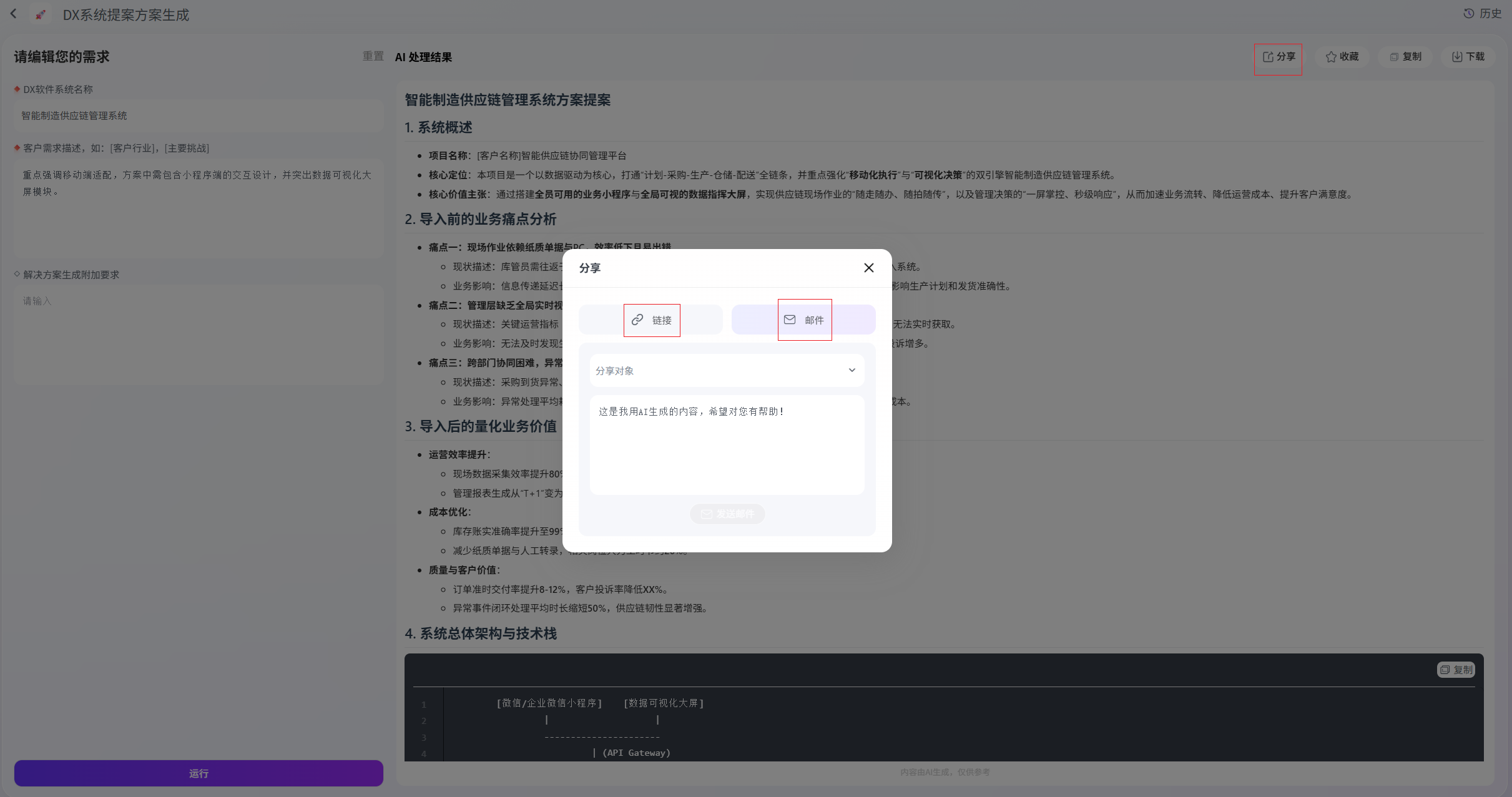
Share: Click the Share button. The system will provide sharing options. You can choose to generate a link to send to colleagues or send the results directly via email.
-
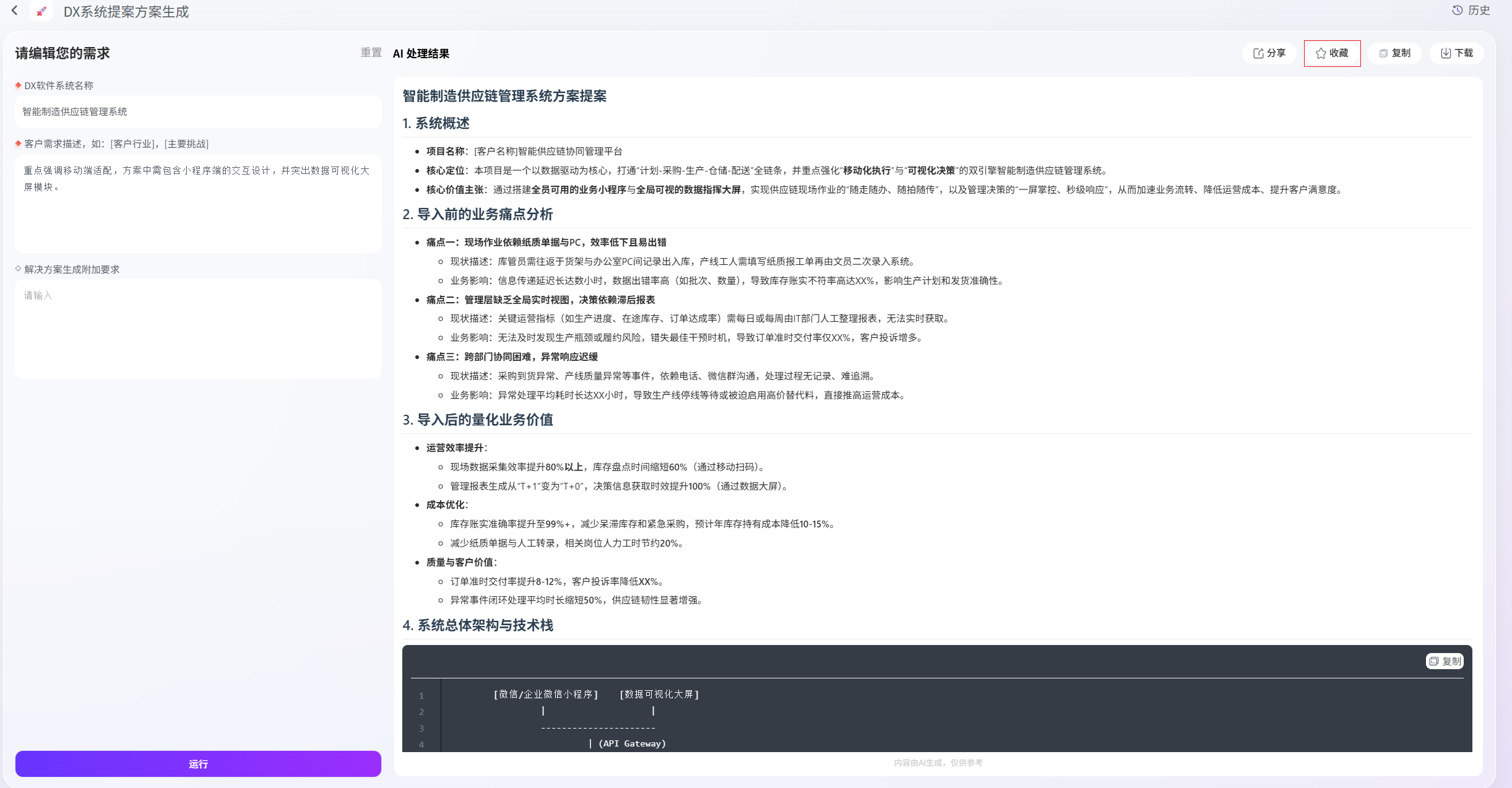
Favorite: Click the Favorite button (star icon). This generation record will be marked.
- After favoriting, you can quickly locate this proposal in the system's "History - Favorites" list for convenient future reference.
- After favoriting, you can quickly locate this proposal in the system's "History - Favorites" list for convenient future reference.
3.4 Resetting the Task
If you need to start a new proposal generation or if the current input information contains errors and needs to be restarted:
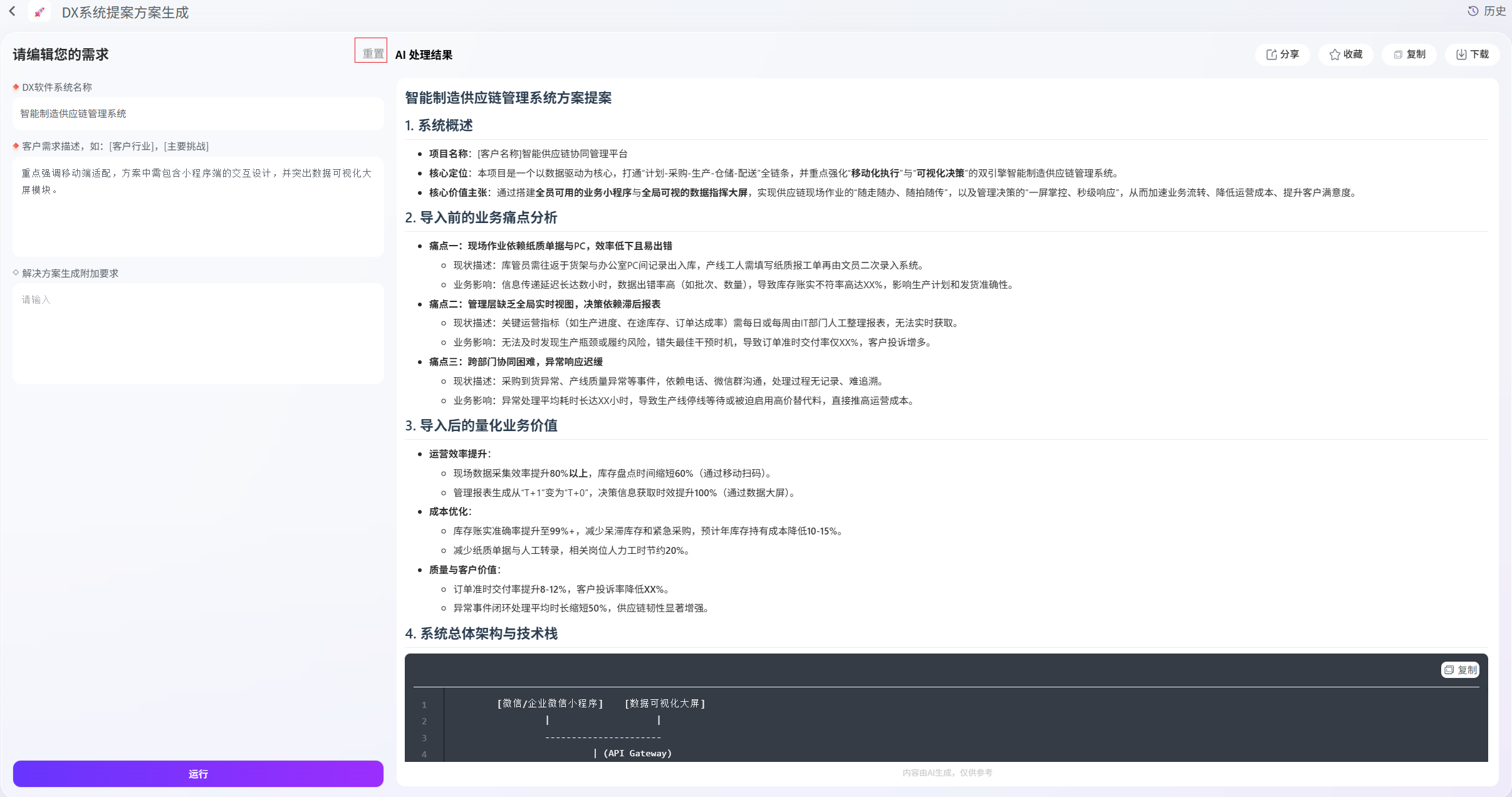
- Click the Reset button on the interface.
- The page will clear all input fields.
4. Frequently Asked Questions
Q1: What should I do if the system remains in a loading state after clicking "Run"?
A1: First, please check whether your network connection is normal. If the network is normal but there is no response for an extended period, the generation task queue may be congested. It is recommended to refresh the page and try again (Note: If a significant amount of content has been entered before refreshing, it is advisable to back up the text first).
Q2: What should I do if the generated Word document opens with garbled formatting?
A2: Please ensure that you are using a relatively recent version of Word software (Microsoft Office 2010 or WPS Office or above is recommended). If the issue persists, it is recommended to try using the Copy function to manually paste the content into Word for formatting adjustments.
Q3: Where can I find previously favorited proposals that have been closed?
A3: Please locate the "History" or Favorites entry in the system navigation bar. After clicking to enter, all records marked as "Favorites" will be listed here in reverse chronological order.
Q4: Will not filling in the "Additional Requirements for Solution Generation" affect the generation results?
A4: No. This item is optional. If not filled in, the system will generate standardized design proposals for you based on general industry best practices and default logic.
5. Summary
The DX System Proposal Generation aims to provide efficient tool support for corporate digital consulting and implementation. Through structured requirement entry, intelligent proposal generation, and flexible export and sharing mechanisms, users can significantly shorten the proposal preparation cycle and ensure the professionalism and completeness of the output content.
During usage, please make full use of the "Preview" function to confirm the effect and utilize the "Favorite" function to manage your knowledge assets. We hope this manual helps you successfully complete the construction of every digital transformation proposal.