

User Manual for the Technical Terminology Visualization Agent
1. Product Overview
This product is an intelligent knowledge transformation tool specifically designed for employees to address the "high barrier to understanding" encountered in technical learning. By leveraging advanced artificial intelligence algorithms, the system converts complex and obscure professional technical terms into accessible, vivid, and illustrative descriptions.
This manual aims to assist users in rapidly mastering the system's operation. Through simple inquiries and interactions, users can obtain precise and engaging explanations, thereby reducing learning costs and enhancing knowledge acquisition efficiency. Whether you are a new technical recruit or a cross-functional collaborator, this system serves as a capable assistant, ensuring seamless technical communication.
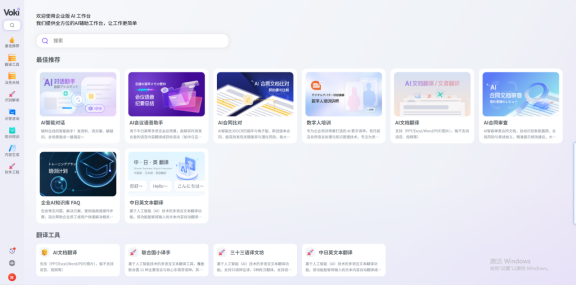
2. Preliminary Preparation and System Login
Before utilizing the agent for terminology explanation, please ensure your device is connected to the internet and complete the following login steps to access the workbench.
- Launch Browser Start your preferred web browser (e.g., Chrome, Edge, Firefox) on your computer or mobile device.
-
Enter Official Login URL
Input the following URL into the browser's address bar and navigate to it:
https://aihub.natec.cn/#/login
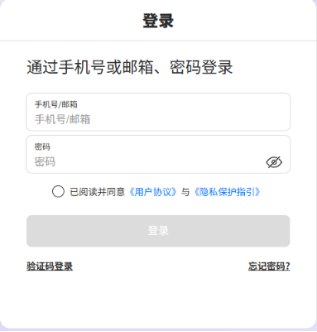
- Account and Password Login On the displayed login form, accurately enter your system account credentials and corresponding password.
- Agree to Terms Locate and check the box labeled "I have read and agree to the 'User Agreement' and 'Privacy Protection Guidelines'" below the login button.
- Complete Login Click the blue "Login" button. The system will verify your identity; upon successful verification, you will be automatically redirected to the agent workbench page, where usage may commence.
3. Operational Workflow
This section guides you through the entire process, from inputting a term to obtaining and managing the resulting explanation.
3.1 Interface Overview
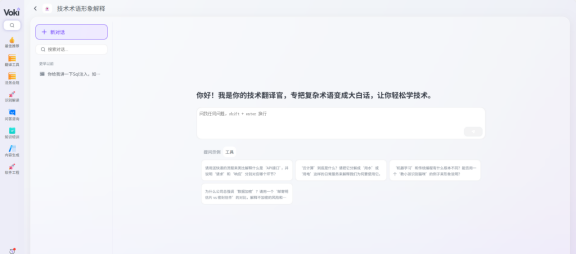
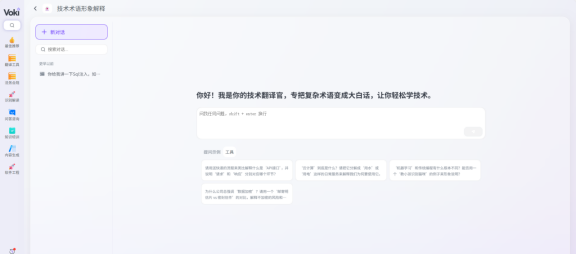
Upon successful login, you will see the main interaction interface. The central area serves as the primary input and dialogue zone. At the bottom, a query input box is provided, with several preset common question examples situated beneath it for your reference.
3.2 Submitting Explanation Requests
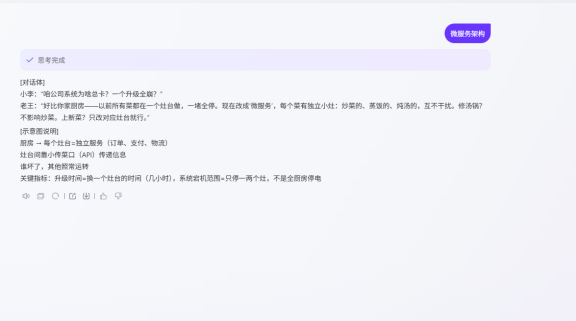
- Enter Terminology Input the complex technical term or related concept requiring explanation into the input box. If you are unsure how to phrase your query, refer to the example texts below the input box; you may click them directly or modify them as needed.
- Click Submit After confirming the input is correct, click the send or submit button (typically the Enter key or the blue arrow icon on the interface). The system will then initiate intelligent analysis and conversion.
3.3 Exception Handling and Notification Mechanism
In the event of network fluctuations or system congestion during generation, please adhere to the following guidelines:
- Excessive Generation Time or Page Freezing: It is recommended that you simply re-open the page. Rest assured, incomplete generation tasks will not be lost.
- Retrieving Results: Incomplete tasks continue to run in the background. Once generation is complete, the results will automatically synchronize to your History section, where they can be located within the history list.
- Email Notification: Upon completion of the generation task, the system will send a notification email to your registered email address, prompting you to review the results.
4. Frequently Asked Questions
Q1: After clicking submit, the system continuously displays "Generating." What should I do? A: Please remain calm. You may try refreshing the browser or re-opening the page. The system will continue processing your request in the background. Once completed, the result will appear in the "History" section, and an email notification will be sent to you.
Q2: What is the meaning of the examples below the input box? A: These examples are designed to help you better understand how to formulate queries. You can click an example directly to view the effect quickly, or use the sentence structure of the examples as a reference to describe the term you wish to explain.
Q3: How can I locate a specific term explained yesterday? A: You can access all past generation records via the "History" function entry on the interface. We recommend "favoriting" important content to facilitate faster retrieval.
Q4: Can the generated explanation content be exported? A: Yes. A "Download" function is provided below each generated result, allowing you to save the content locally for offline study or archiving purposes.
5. Summary
The Technical Terminology Visualization Agent achieves the democratization of complex technical knowledge through a streamlined operational workflow (Login - Input - Retrieve - Manage). During usage, please fully utilize the Copy, Download, Favorite, and Share functions to manage your knowledge assets. Should you encounter generation delays, please refer to the Exception Handling Mechanism to check your history or await email notifications.
We hope this tool serves as an accelerator in your career development, assisting you in overcoming technical challenges with ease.