

Smart Factory Application Consultation System User Manual
1. Product Overview
This system is a professional consultation software dedicated to the field of smart factory applications, designed to serve as an intelligent application advisor for enterprises. Its core function involves in-depth interpretation of national and local policies, application procedures, and specific requirements related to smart factories. The system provides tailored application strategies and guides the preparation of application materials. It aims to lower application barriers through intelligent means, facilitating the smooth completion of smart transformation applications for enterprises.
Core Values and Functions:
- Precise Policy Interpretation: Automatically parses the latest smart factory application policies to extract key indicators and requirements.
- Application Strategy Generation: Assists in generating application strategies aligned with policy orientations based on the enterprise's specific situation.
- Material Preparation Guidance: Provides detailed material checklists and writing specifications to ensure the completeness and compliance of application documents.
- Full-Process Q&A Support: Resolves various complex issues during the application process through natural language interaction.
2. Preliminary Preparation and System Login
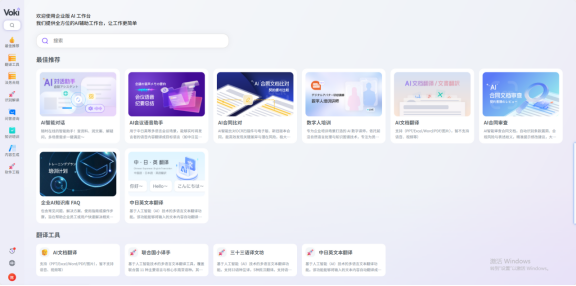
Before initiating consultations using this system, please ensure your network environment is stable and you have prepared the account credentials assigned by the system. Please follow the steps below to log in:
2.1 Accessing the System
- Open a standard web browser (Chrome, Edge, or Firefox are recommended for optimal experience).
- Enter the official login URL in the browser address bar:
https://aihub.natec.cn/#/loginand press Enter to access.
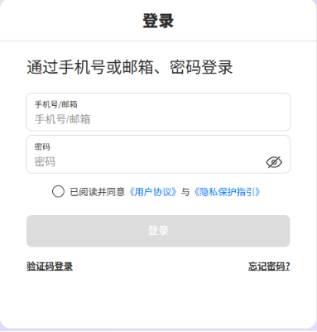
2.2 Account Login
- On the login page, locate the corresponding input fields.
- Enter Account: Input the user account assigned to you by the system.
- Enter Password: Input the corresponding login password.
2.3 Agreement Confirmation and Login
- Below the login button, check the box labeled "I have read and agree to the 'User Agreement' and 'Privacy Protection Guidelines'".
- Click the blue "Login" button.
- Wait for system verification and redirection; upon success, you will automatically enter the workspace interface.
3. Operational Procedures
After logging into the system, you can obtain consultation advice regarding smart factory applications through a streamlined interaction process. Detailed operational steps are as follows:
3.1 Initiating an Inquiry
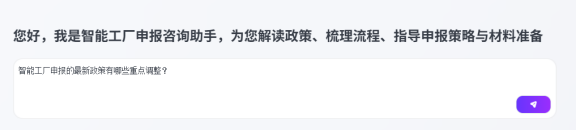
- In the consultation interaction area of the workspace, locate the Input Field.
- Enter your specific questions regarding smart factory applications (e.g., "What are the core indicators for applying for a provincial-level smart factory?" or "Please generate a list of application materials for me").
- Reference Examples: If you are unsure how to formulate a question, refer to the Question Examples provided below the input field; clicking on an example will automatically populate it.
3.2 Submission and Generation
- After confirming the question is entered correctly, click the "Submit" button next to the input field (typically represented by a send icon or the text "Submit").
- The system will begin parsing your query and generating relevant guidance content. Please keep the page open and wait for the results to return.
3.3 Viewing Results
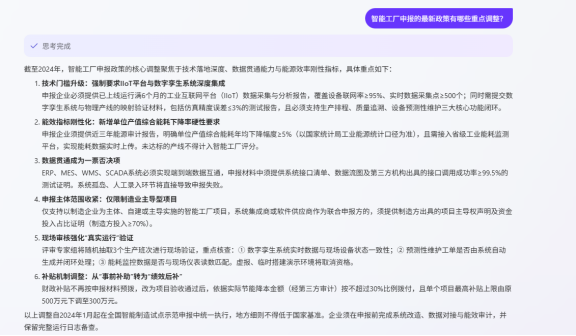
- Upon completion, the answer will be displayed directly in the conversation area.
- You may scroll down the page to view the complete strategy recommendations, procedure interpretations, or material requirements.
- To continue asking questions, simply enter new content in the input field; the system supports multi-turn dialogue.
4. Frequently Asked Questions
If you encounter the following situations during usage, please refer to the corresponding solutions:
4.1 What if generation takes too long or the page freezes?
- Problem Description: After clicking submit, the system responds slowly or the interface remains unchanged for an extended period.
- Solution: This may be caused by network fluctuations or high server load. It is recommended that you reopen the page or refresh the browser. The system features a breakpoint resume mechanism; unfinished generation tasks will continue processing in the background.
4.2 Where do incomplete answers go after closing the page?
- Problem Description: The browser window was accidentally closed during the generation process.
- Solution: Rest assured, the system records your requests. Once the background generation is complete, the results will be automatically synchronized and saved to your History Records. You can view them upon re-login.
4.3 How do I know when the result has been generated?
- Problem Description: Users prefer not to wait at the page continuously and desire notification alerts.
- Solution: The system supports asynchronous notifications. Upon completion of the generation task, the system will send a notification email to the bound email address. You can click the link within the email or log in to the system to view the results directly.
5. Summary
This user manual details the usage methods of the Smart Factory Application Consultation System. Users need only log in via a browser and pose application-related questions in the input field to receive professional strategies and guidance.
To ensure a smoother user experience, please note the following points:
- Utilize Examples: Referencing the question examples below the input field allows for more precise acquisition of required information.
- Monitor Notifications: Leverage email notifications and history record functions to prevent information loss due to network latency or page closure.
- Troubleshooting: In the event of slow page response, promptly refresh or reopen the page.
Through this system, enterprises can efficiently and accurately grasp the essentials of smart factory applications, successfully completing their smart transformation application processes.