

System Prompt Generation User Manual
1. Product Overview
This system is a professional agent thinking framework and principle construction tool designed to establish a solid cognitive foundation and clarify behavioral guidelines for various execution roles. Leveraging standardized underlying logic, the system empowers the execution phase, ensuring that users maintain high levels of directional compliance and operational efficiency when performing tasks.
With robust logical processing capabilities, the system can generate complete templates or framework solutions with comprehensive clauses and precise language based on specific user requirements (e.g., contract drafting needs). Whether establishing complex business logic models or drafting specific legal documents, this system delivers high-quality outputs to assist users in completing professional work efficiently.
2. Preliminary Preparation and System Login
Before using this system, please ensure you possess valid account credentials and that your network connection is stable. The specific steps to log in are as follows:
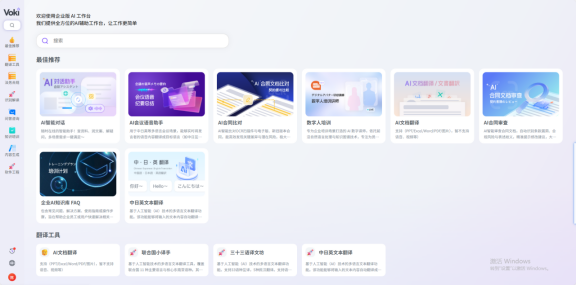
2.1 Accessing the System
- Open a standard web browser (Chrome, Edge, or Firefox recommended).
- Enter the official login address in the address bar:
https://aihub.natec.cn/#/loginand access the page.
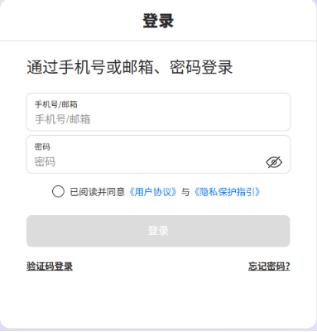
2.2 Account Login
- On the login page, enter your username and password in the designated fields.
- Check the box labeled "I have read and agree to the 'User Agreement' and 'Privacy Protection Guidelines'".
- Click the blue "Login" button.
- Upon successful verification, the system will automatically redirect you to the Workbench page, where usage may commence.
3. Operational Workflow
The core workflow of this system consists of "Input Requirements - Generate Results - Manage Results". Please proceed according to the following steps:
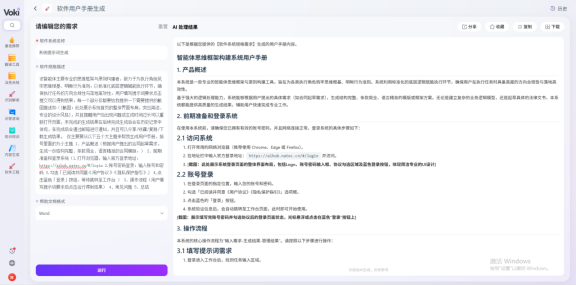
3.1 Filling in Prompt Requirements
- After logging into the Workbench, locate the task input area.
- Clearly and comprehensively fill in your prompt requirements in the input box. For instance, if you need to draft a contract, specify the contract type, information regarding both parties, core clauses, and any special requirements.
3.2 Generating Results
- After confirming the accuracy of the prompt information, click the "Run" or "Generate" button.
- The system will begin processing your request. This process may take from a few seconds to several minutes, depending on the complexity of the task.
3.3 Viewing and Retrieving Results
Upon completion of generation, you may perform the following actions:
- View Results: Directly view the generated thinking framework or template content in the display area of the page.
-
Result Management:
- Copy: Click the "Copy" button to instantly copy the content to the clipboard.
- Download: Click the "Download" button to save the result as a local file.
- Share: Click the "Share" button to generate a link for distribution to other collaborators.
- Favorite: Click the "Favorite" button to save important results to your personal favorites for easy future retrieval.

3.4 Result Notifications and History
- Email Notification: Upon task completion, the system will automatically send a notification email to your registered email address; there is no need to remain on the page waiting.
- History Records: If an issue occurs during generation or if you close the page, unfinished generation tasks will continue processing in the background. Once completed, these results will be automatically saved in your "History," allowing you to review them at any time.
4. Frequently Asked Questions
Q1: What should I do if the interface freezes or displays an error after clicking Generate? A: Please attempt to refresh the page or reopen the browser to access the system. There is no need to worry about lost progress; unfinished generation tasks will continue running in the background. Once completed, they will appear in the History section, and an email notification will be sent to you.
Q2: What should I do if the generation takes too long and the loading indicator keeps spinning? A: Generation time depends on task complexity and server load. If you have been waiting for an extended period, it is advisable to close the page and attend to other matters. The system will notify you via email upon completion, and you may also check the results later in the History section.
Q3: I cannot locate the result generated just now. Where is it? A: Please select the "History" option from the system menu. All completed and cancelled tasks are listed here.
Q4: How can I ensure my generated results are not leaked? A: The system strictly adheres to the "Privacy Protection Guidelines," and both your input content and generated results are protected. Please do not share the generated links with unauthorized personnel.
5. Summary
As a professional thinker framework and principle builder, this system significantly enhances your efficiency in handling complex logic or drafting professional documents (such as contract templates). Through a simple "Input-Run" workflow, combined with robust exception handling mechanisms (background generation, history recovery) and result management features (sharing, favoriting, downloading), the system ensures a smooth and reliable user experience. In case of any anomalies, please prioritize refreshing the page or consulting the History records.