AI Intelligent Dialogue System User Manual

1. Product Overview

This system is a professional AI intelligent dialogue assistant agent designed to provide users with always-available intelligent support. The system integrates multiple advanced large-scale models, capable of meeting business needs across various scenarios such as information retrieval, content refinement, and inquiry resolution. Whether for routine consultations or complex document processing, the system delivers efficient and precise solutions through one-click operations.

In terms of core functionality, the system possesses robust context understanding and generation capabilities, enabling customized support tailored to specific business scenarios. For instance, in legal or commercial contexts, upon receiving user requests for contract drafting, the system can generate a contract template that is structurally complete, comprehensively clause-detailed, and linguistically precise, significantly enhancing both the efficiency and quality of document preparation.

2. Preliminary Preparation and System Login

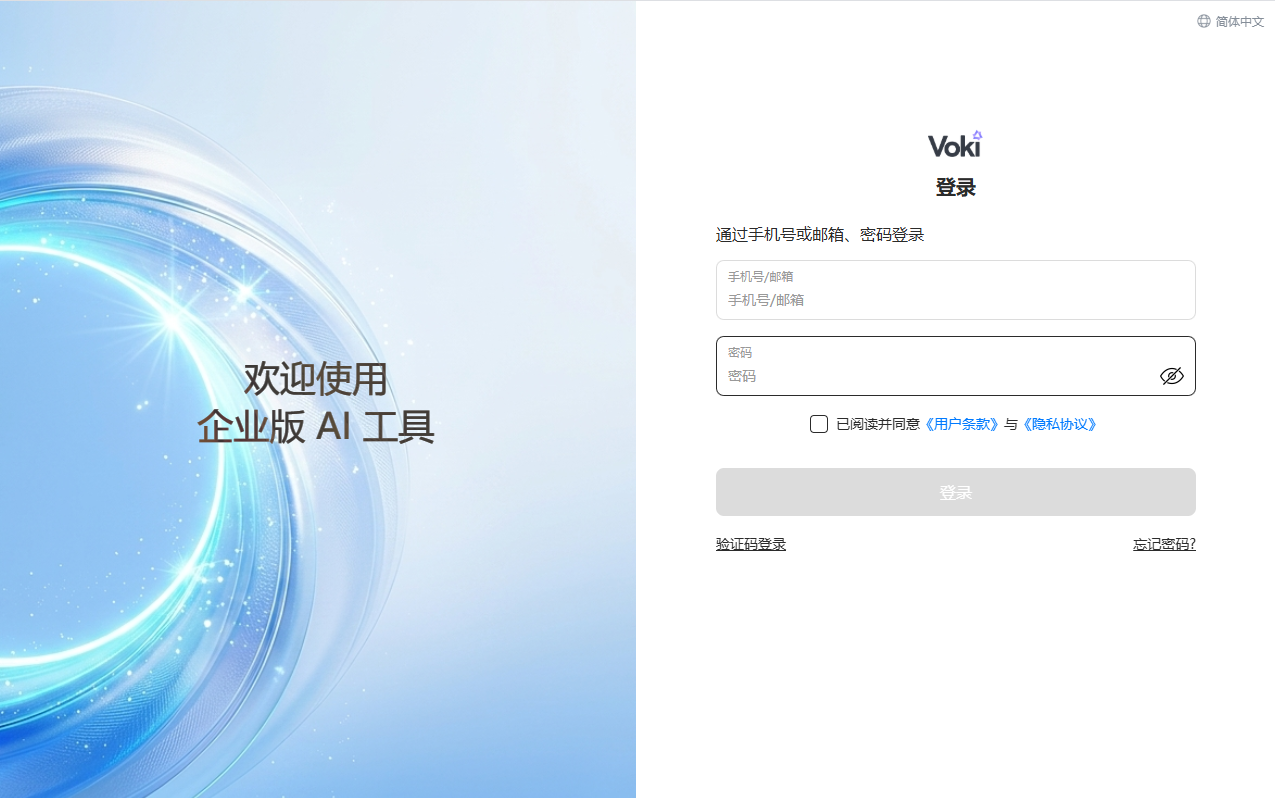
Before commencing use of the AI intelligent dialogue service, please ensure your device is connected to the internet and access the system using a recommended browser (such as Chrome or Edge). The specific steps for logging into the system are as follows:

  • Open Browser: Enter the official login address in the browser's address bar: https://aihub.natec.cn/#/login and access it.
  • Enter Account Information: In the corresponding input fields on the login page, enter your registered username and password.
  • Confirm Agreement: Carefully read the relevant terms and check the box stating "I have read and agree to the 'User Agreement' and 'Privacy Protection Guidelines'".
  • Complete Login: Click the blue "Login" button; the system will verify your identity. Upon successful verification, please wait patiently for the page to automatically redirect to the workspace interface.

3. Operational Procedures

After logging into the system, you may configure dialogue parameters according to your actual requirements and begin submitting inquiries. Please follow the steps below:

3.1 Configuring Dialogue Parameters

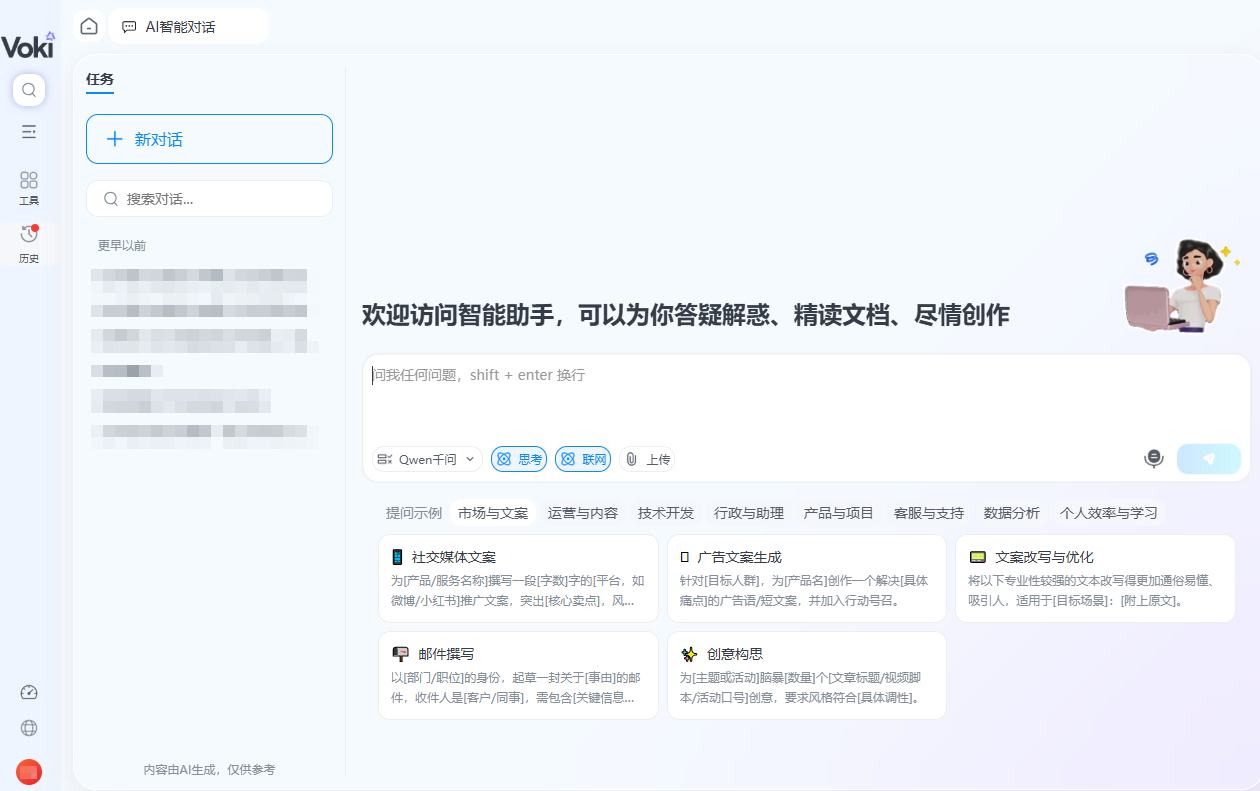
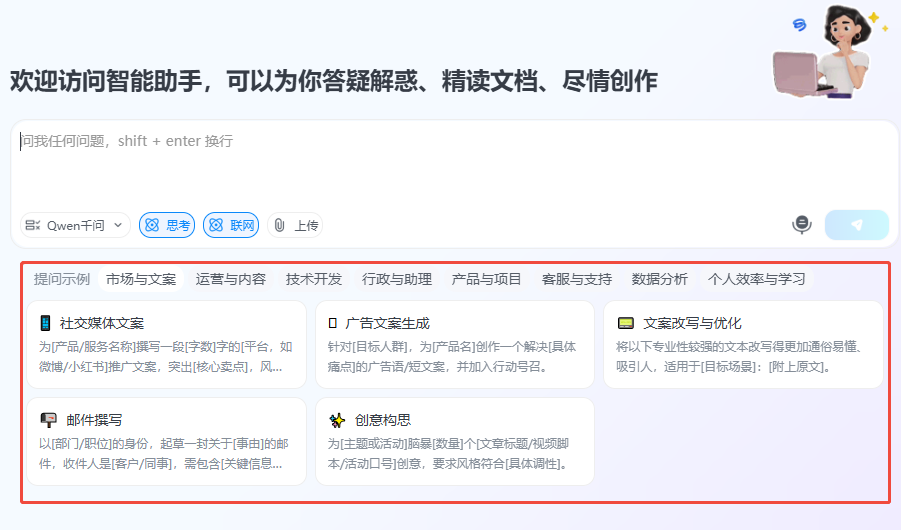
Prior to submitting an inquiry, you may adjust the following settings via the top menu or sidebar based on task complexity:

  • Select Model: Click the model dropdown menu and select either the qwen or DeepSeek model according to your preference.
  • Feature Toggles:
    • Deep Thinking: If handling complex logical reasoning tasks, it is recommended to enable the "Deep Thinking" mode.
    • Internet Search: If acquiring the latest real-time information or data is required, please enable the "Internet Search" function.

3.2 Uploading Documents (Optional)

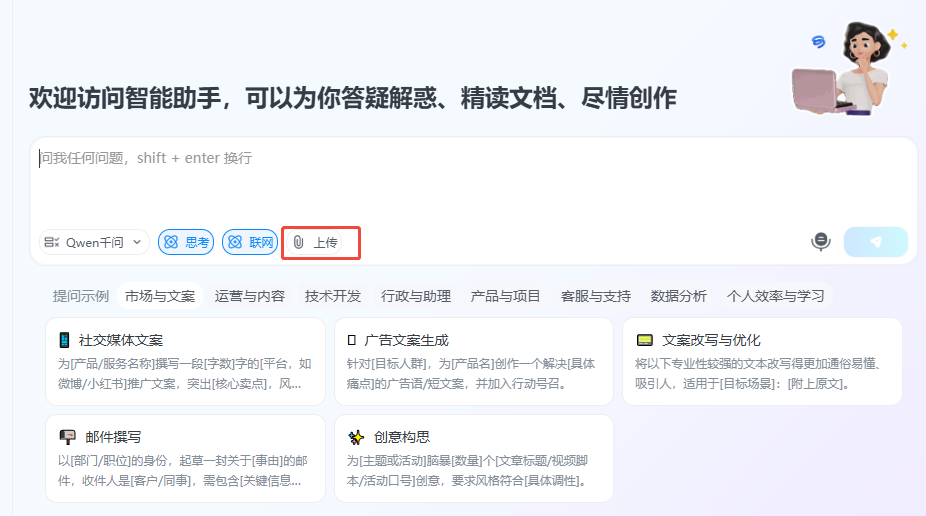
If analysis or summarization based on specific documents is required, click the "Upload Document" icon or button located above the input field, select the local file, and wait for the upload completion notification.

3.3 Inputting Questions and Submission

  • Input Question: Clearly and accurately type your inquiry into the input field at the bottom of the page.
  • Use Examples: If you are unsure how to phrase your question, refer to the "Question Examples" provided below the input field and click to utilize them.
  • Submit Request: Click the "Submit" button to the right of the input field (or press the Enter key), and the system will commence generating the response.

3.4 Result Retrieval and Exception Handling

  • View Results: Content generated by the system will be displayed directly within the dialogue window.
  • Long-duration Tasks and Notifications: For complex generation tasks, processing time may be extended. Please note:
    • The system will send a notification via email upon task completion.
    • Even if the page is closed, incomplete generation results will be preserved and can be viewed at any time in the history records once completed.
  • Exception Response: If page freezing, error messages, or excessive generation times occur during the process, it is recommended to directly reopen the page. The system possesses breakpoint resume capabilities and will not lose your generation progress due to such interruptions.

4. Frequently Asked Questions

Q1: What should I do if the content generation takes too long? A: Please do not worry. For complex tasks, extended generation times are normal. You may attempt to refresh the page or reopen the URL. The generation task will continue in the background; upon completion, you will receive an email notification, and the result will be automatically saved in the history records for your review.

Q2: How do I switch between different AI models? A: Prior to initiating a dialogue, you may switch between the qwen and DeepSeek models by clicking the dropdown menu in the model selection area located at the top of the interface.

Q3: Can the system process documents uploaded by me? A: Yes. The system supports document upload functionality. You may upload relevant files, and the system will formulate responses based on the document content combined with your inquiry.

5. Summary

By integrating advanced models such as qwen and DeepSeek, coupled with Deep Thinking and Internet Search functionalities, the AI Intelligent Dialogue System provides a comprehensive intelligent work assistant. From complex document generation like contract drafting to routine information retrieval and content refinement, this system offers stable and efficient support.

During usage, please flexibly utilize model selection and document upload features to enhance response quality. In the event of network fluctuations or prolonged waiting periods, kindly rely on the system's asynchronous generation and email notification mechanisms. We hope this manual facilitates your rapid onboarding, allowing you to experience the convenience and efficiency of intelligent office operations.