

Audio and Video Recognition Text -- User Manual
1. Product Overview
This product is a professional High-Precision Speech-to-Text tool designed to provide users with accurate speech transcription services. The system integrates advanced speech recognition technology; whether organizing meeting minutes, drafting interview transcripts, or processing multilingual video content, this tool significantly enhances your operational efficiency.
Core features include:
- Multi-Format Support: Supports the upload of common video and audio formats.
- Intelligent Parsing: Supports not only local file uploads but also direct parsing of third-party public links.
- Multilingual Recognition: Covers Simplified Chinese, Japanese, English, and multiple other languages.
- Speaker Diarization: Automatically distinguishes between different speakers to facilitate reading and understanding dialogue logic.
- Export and Sharing: Supports export to Word documents, text copying, email sharing, and link sharing.
2. Preliminary Preparation
Before utilizing this system for audio and video transcription, please ensure your environment meets the following conditions to guarantee transcription accuracy and smooth workflow execution.
2.1 File Preparation
-
Format Requirements: Please confirm that your files are of types supported by the system.
-
Video: Such as
.mp4,.avi,.mov,.mkv, etc. -
Audio: Such as
.mp3,.wav,.aac,.m4a, etc.
-
Video: Such as
- Audio Quality Recommendations: Although the system possesses high-precision recognition capabilities, the clarity of the source file directly impacts the final result. It is recommended to use audio and video files free from background noise, with clear pronunciation and moderate volume. For meeting records recorded via digital recorders, it is advisable to position the recorder as close to the sound source as possible during recording.
2.2 Network Environment
- This system requires an internet connection for file uploads and AI processing. Please ensure network stability to prevent task failure caused by disconnection during upload or processing.
3. Operational Workflow
The operational workflow of this system is designed to be concise and clear, primarily divided into four stages: Input Source Configuration, Parameter Setup, Task Execution, and Result Processing.
3.1 Step 1: Add Audio/Video Source (Required)
The system provides two methods for adding audio/video sources.
Method A: Local Upload (Required)
This method applies to files stored on your computer's hard drive.
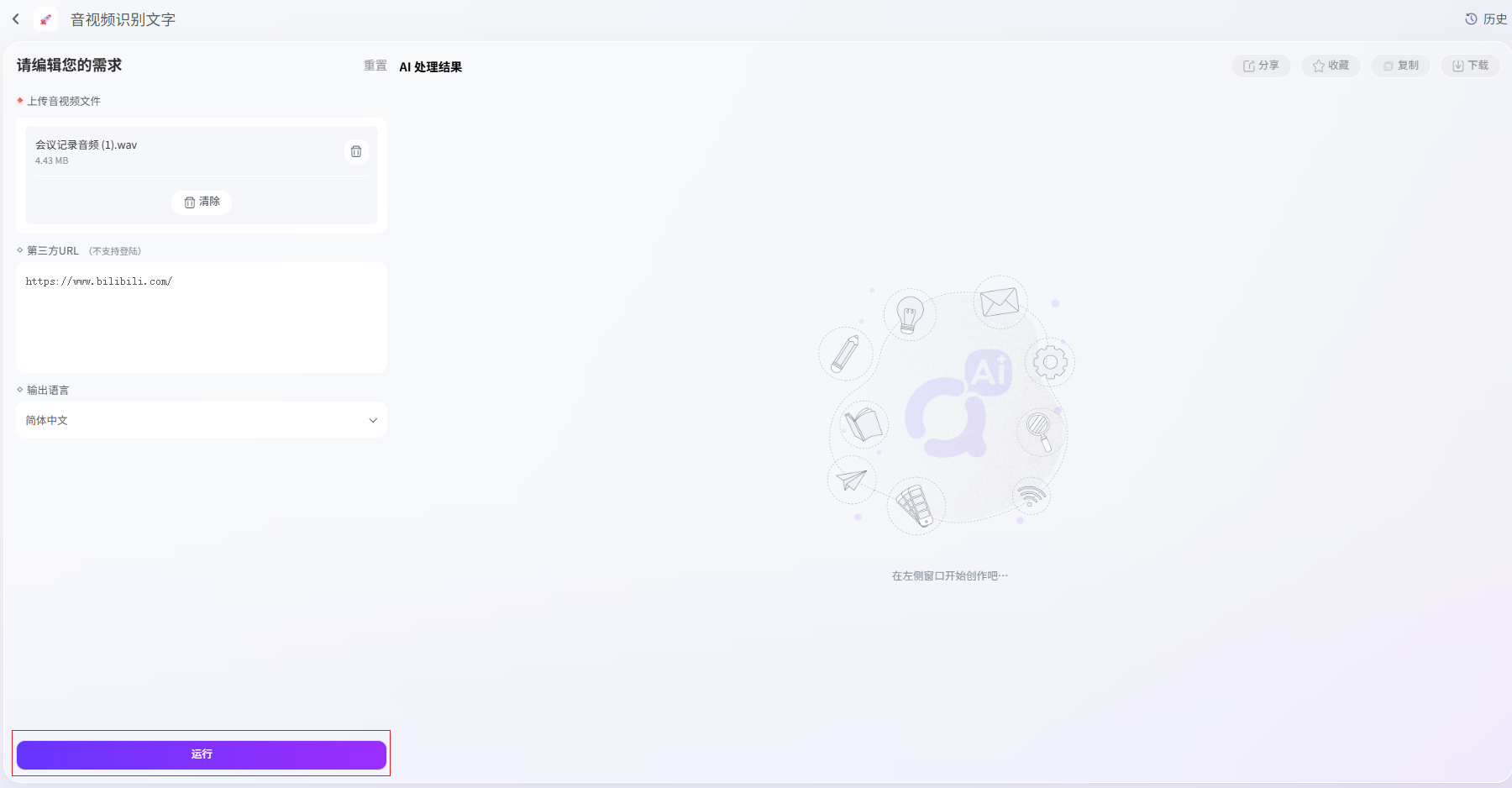
- Locate the Upload Audio/Video File button at the top of the operation interface.
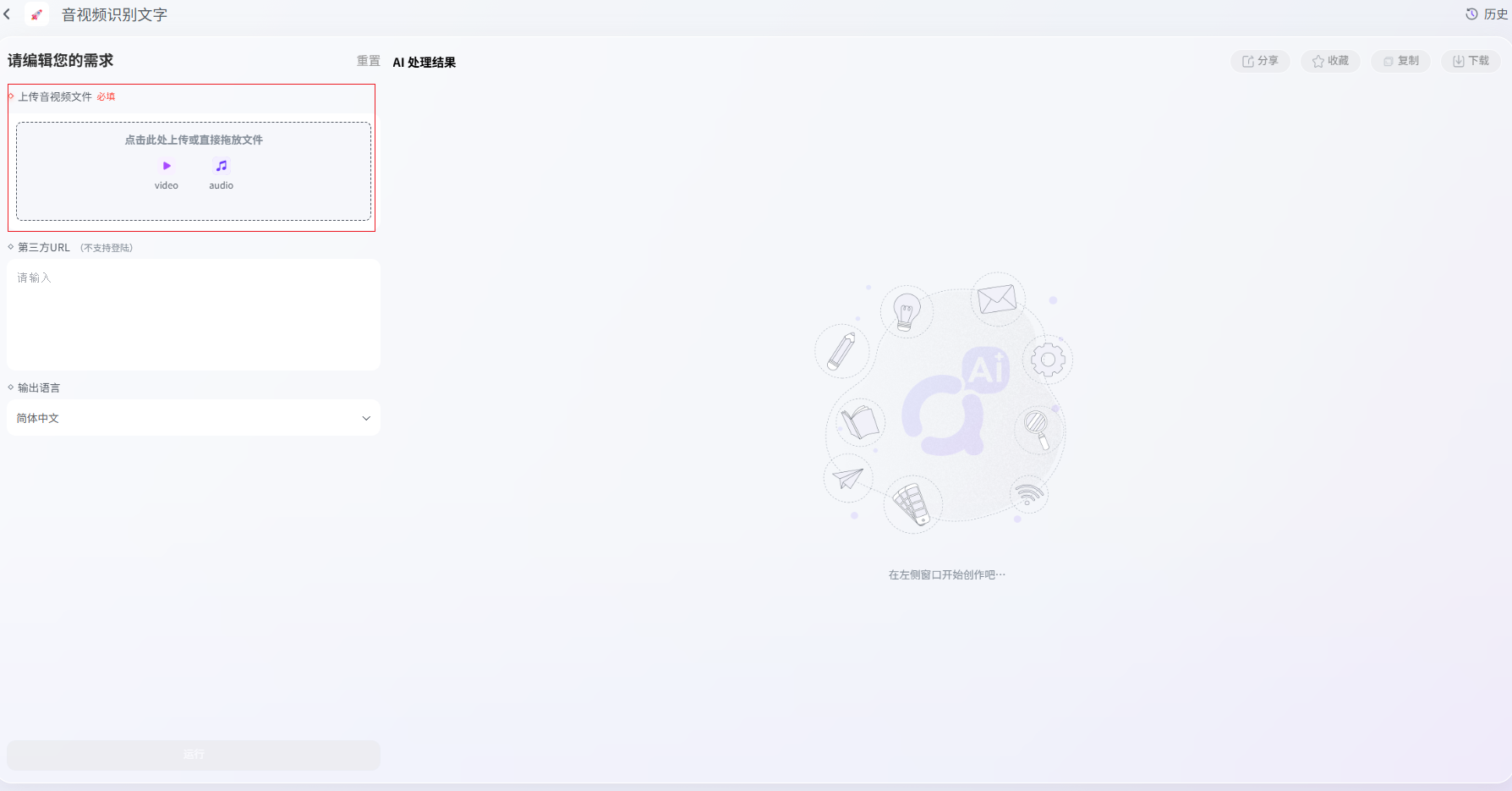
- Click to Upload: Click the button within the dashed box. In the弹出的 file selection window, locate the target video or audio file, select it, and click "Open".
- Drag-and-Drop Upload: Directly drag files from your computer folder into the dashed box area until the frame changes color to indicate release.
-
File Management:
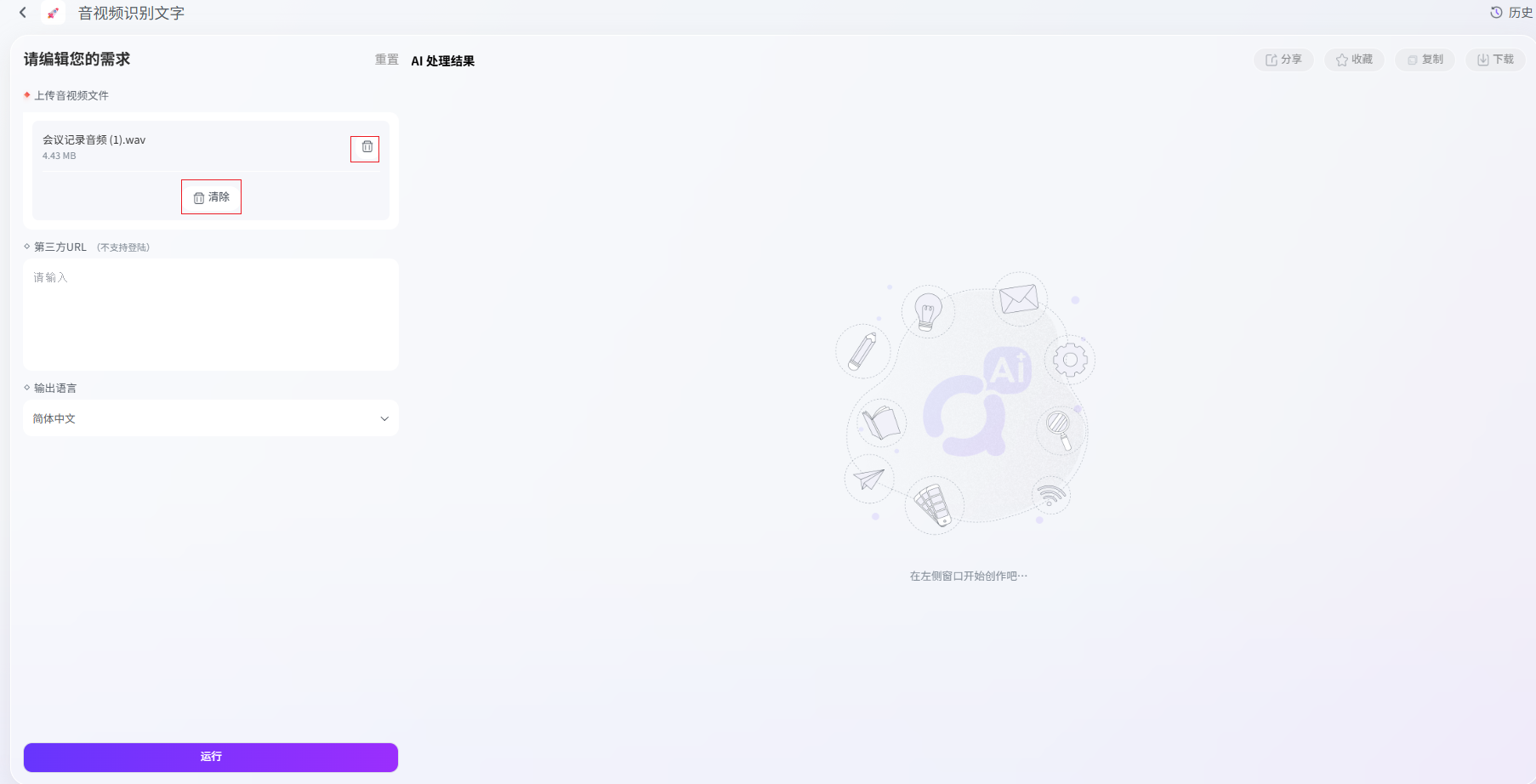
- Upon successful upload, the filename and size icon will be displayed within the box.
- If a file was uploaded in error, click the Delete button (trash can icon) next to the filename to remove the current file and re-upload.
💡 Input Source Interpretation and Examples To ensure the system processes your files correctly, please note the following points:
- Type Restrictions: The system recognizes only
video(video) andaudio(audio) streams. Do not upload images, documents, or compressed archives.- Examples:
- ✅ Correct:
2023_Annual_General_Meeting_Recording.mp4,Client_Interview_Recording.wav,Product_Launch_Video.mov- ❌ Incorrect:
Meeting_Minutes.docx,Cover_Image.jpg,Resource_Package.zip
Method B: Third-Party URL (Optional)
This method applies to publicly accessible audio/video links on the internet.
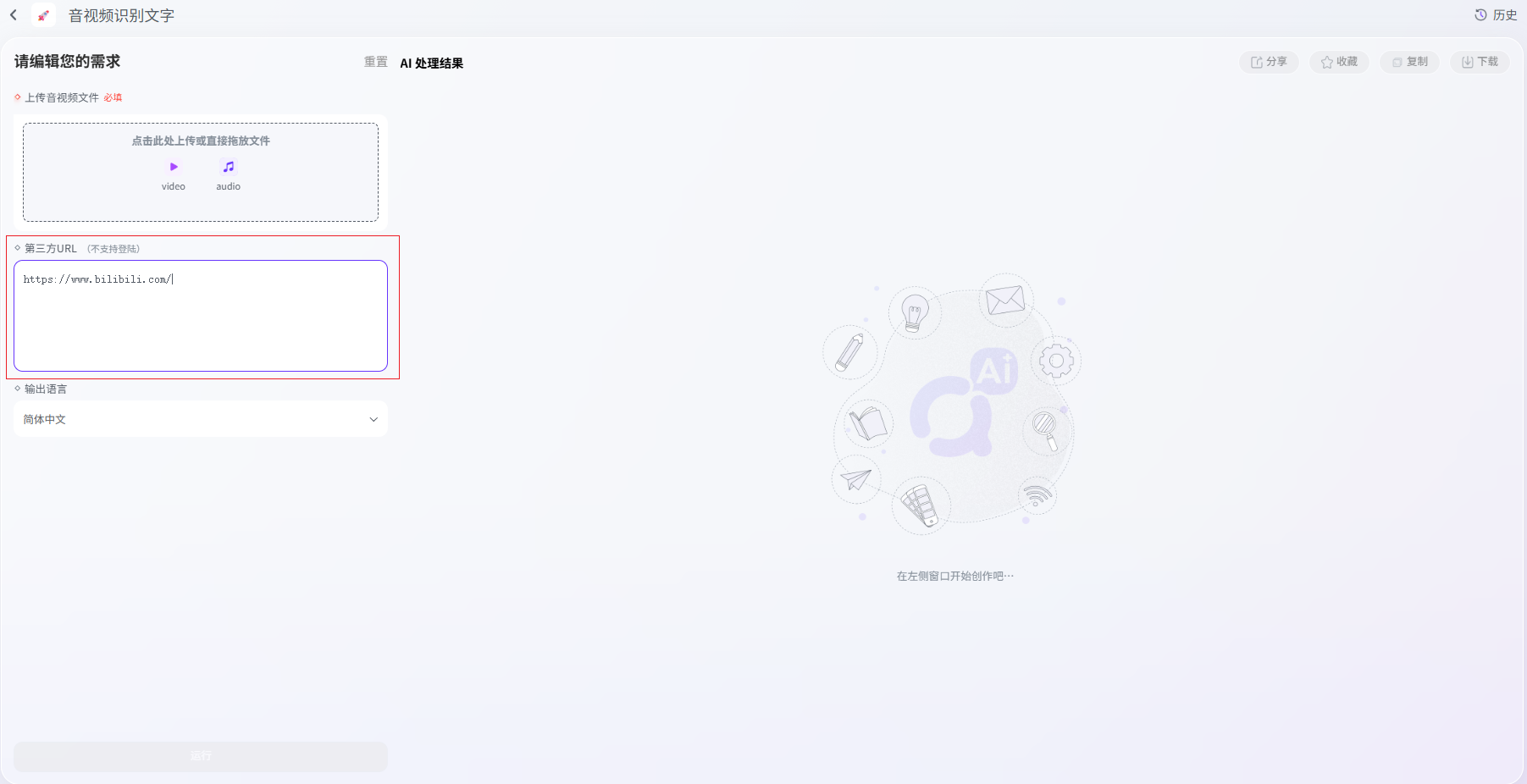
- Click the Third-Party URL input field.
- Copy and paste the web link of the video or audio into the box.
-
Important Constraints:
- Public Links Only: The system cannot access content requiring login, password verification, or paid membership (e.g., private cloud storage links, videos restricted to fans, etc.).
- Parsing Capability: The system will automatically parse the audio/video stream within the link.
3.2 Step 2: Configure Output Language
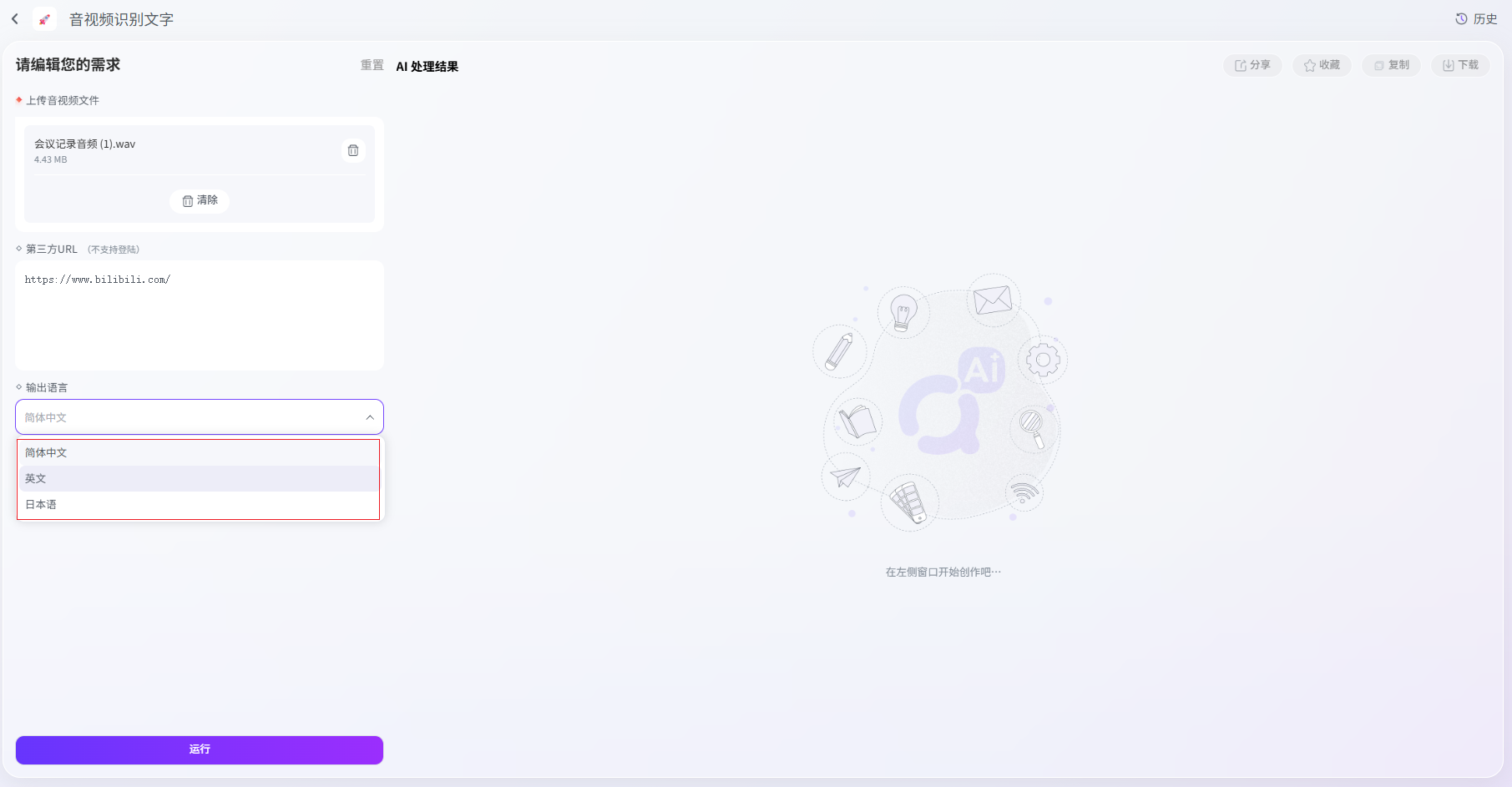
In the Output Language settings area located in the middle of the page, select the target language you wish to generate.
- The default option is Simplified Chinese.
- Click the dropdown menu to select based on the source file's language:
- Simplified Chinese (Applicable for Mandarin, dialects, etc.)
- Japanese
- English
3.3 Step 3: Execute Transcription Task
Once configuration is complete, initiate the AI processing.
- Click the Run button at the bottom of the page.
-
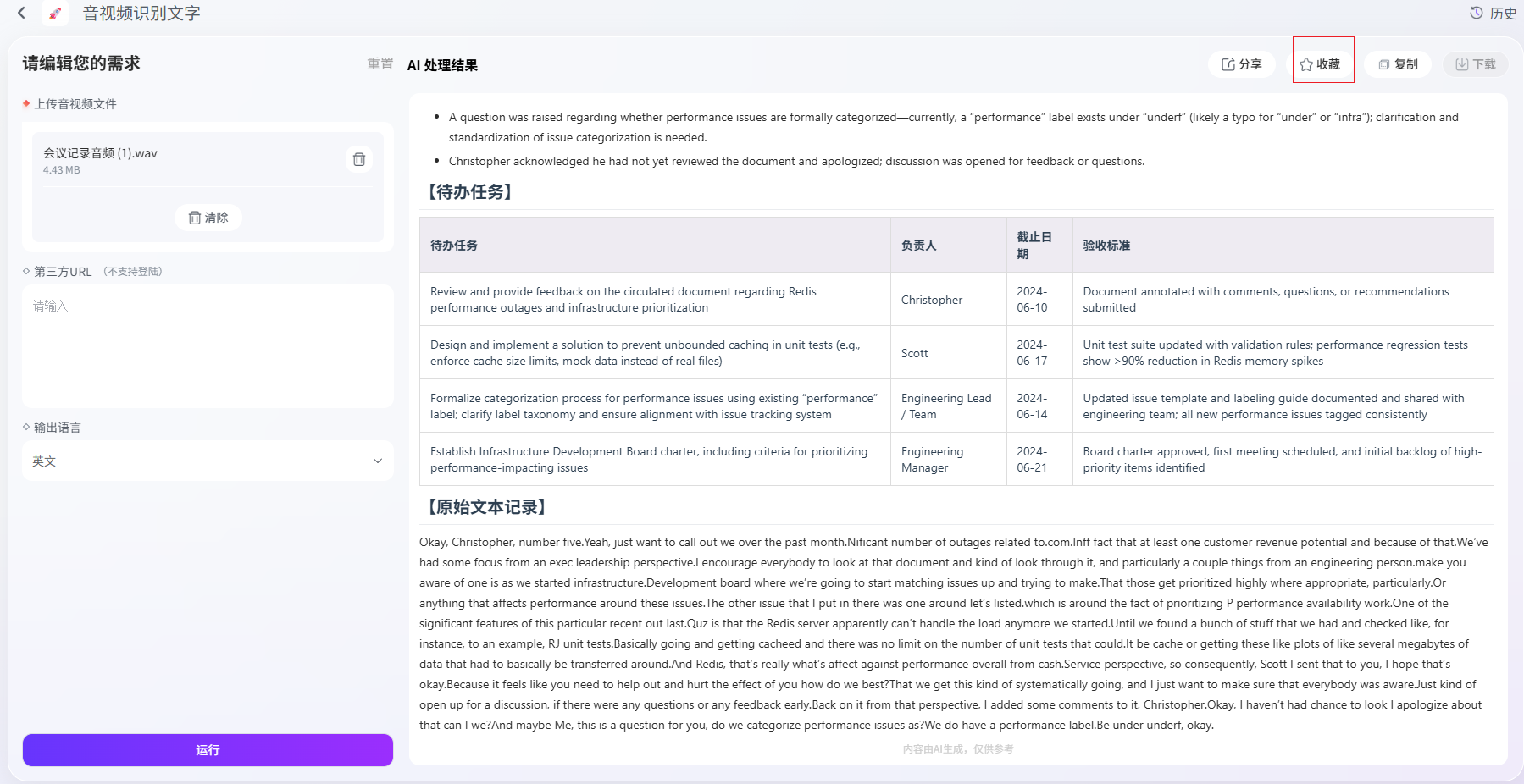
Task Status: The AI Processing Results area displays a progress bar. Do not close the browser page at this time.
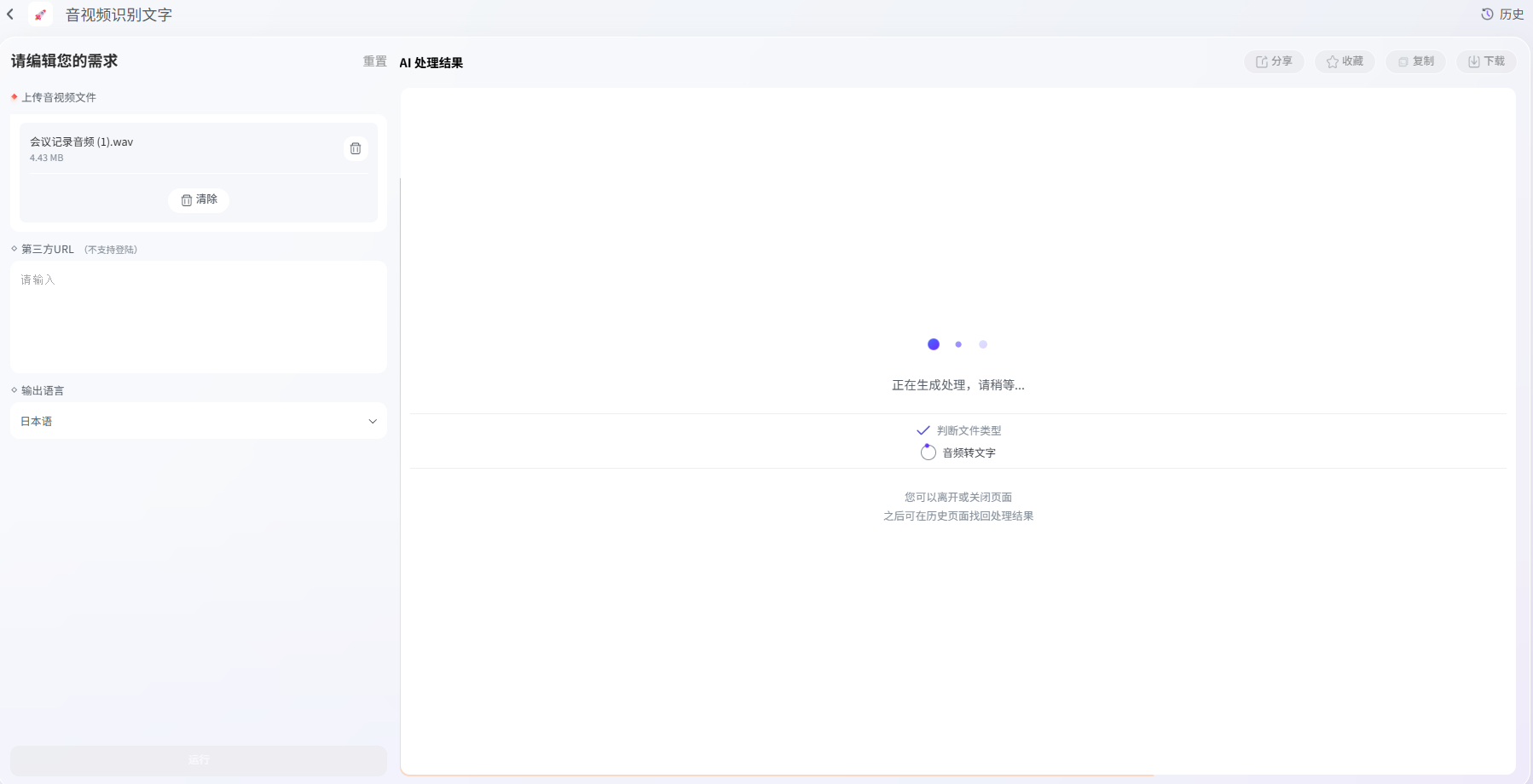
- Wait for Generation: Processing duration depends on file length and network conditions. Upon completion, preview content will be displayed in the AI Processing Results area on the current page.
3.4 Step 4: Result Review and Subsequent Operations
Upon completion of transcription, you may perform various operations on the generated text.
1. Online Preview
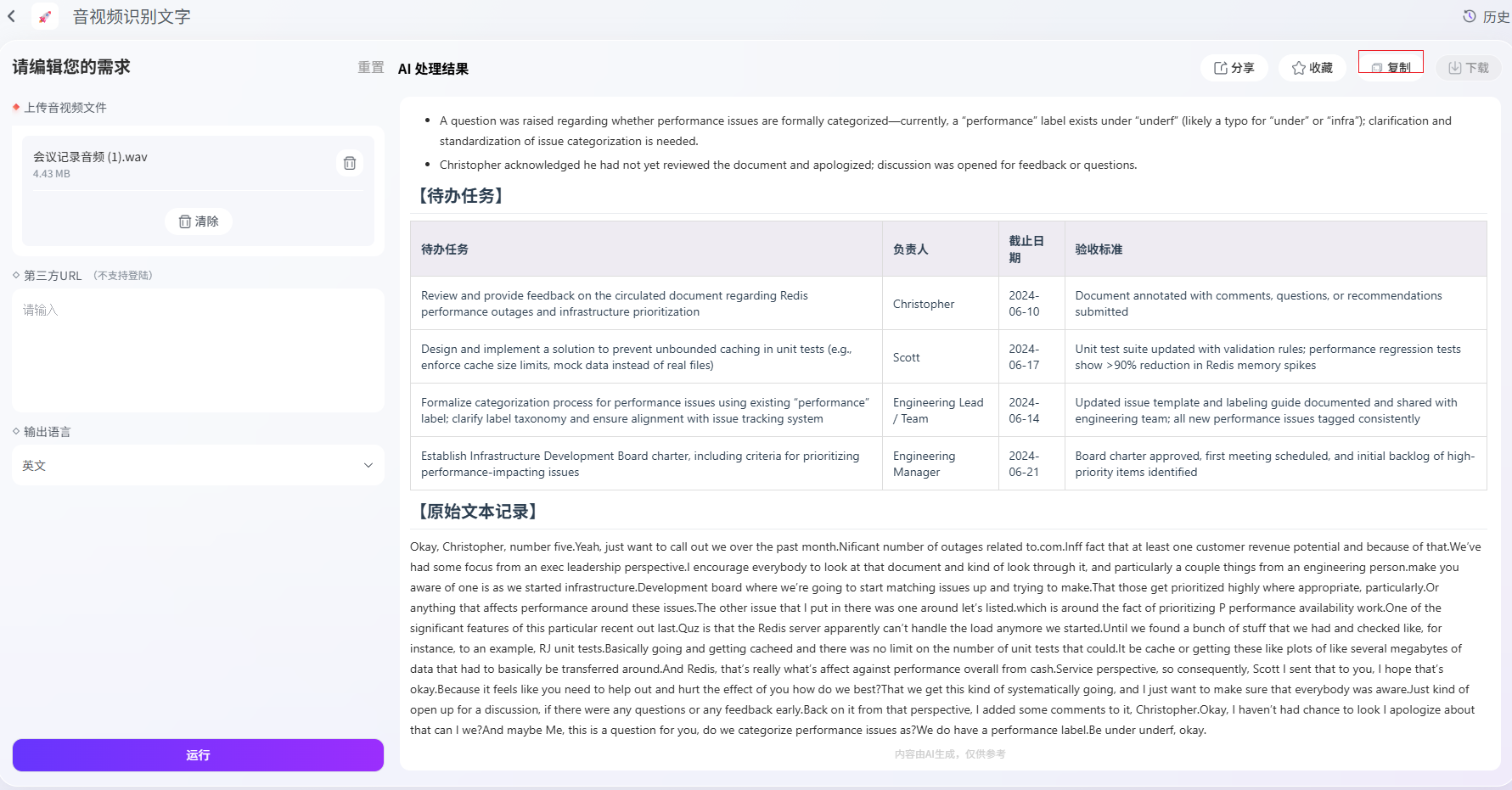
In the AI Processing Results area, you may read the recognized text directly to verify content accuracy.
2. Copy Text
If you need to paste the text into other software (e.g., WeChat, note-taking applications):
- Click the Copy button on the toolbar.
- The text is now copied to your clipboard and can be pasted directly to the target location.
3. Share Results
Share transcription results with others:
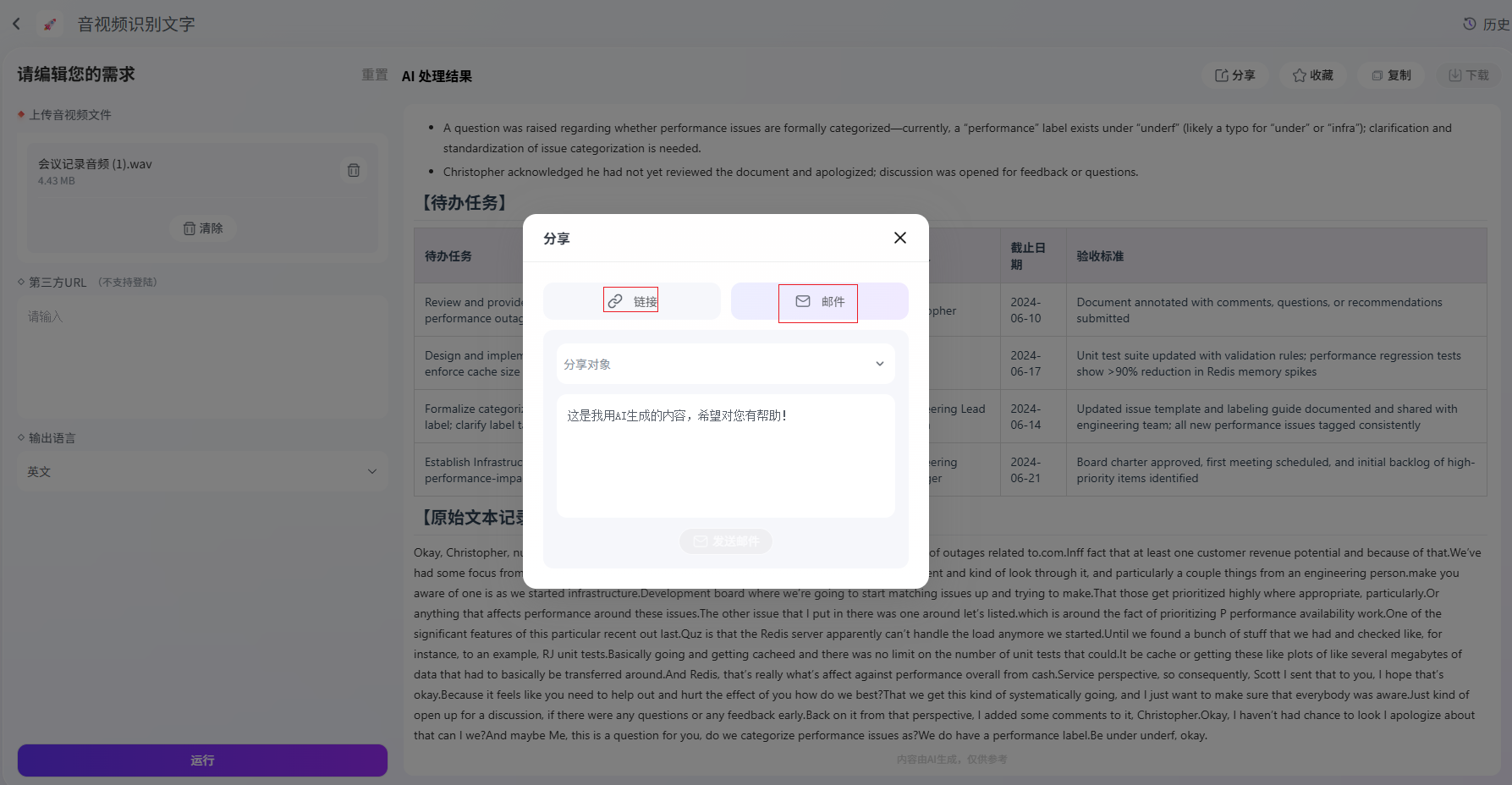
- Click the Share button.
- Select the sharing method: Link Sharing or Email Sharing.
4. Save Records
Save important transcription records for future retrieval:
- Click the Favorite button (star icon).
- The system will prompt that the record has been saved successfully. You can subsequently locate this record quickly in the system's "History - Favorited" list.
3.5 Step 5: Reset and Create New
After completing the current task, if you need to process another file:
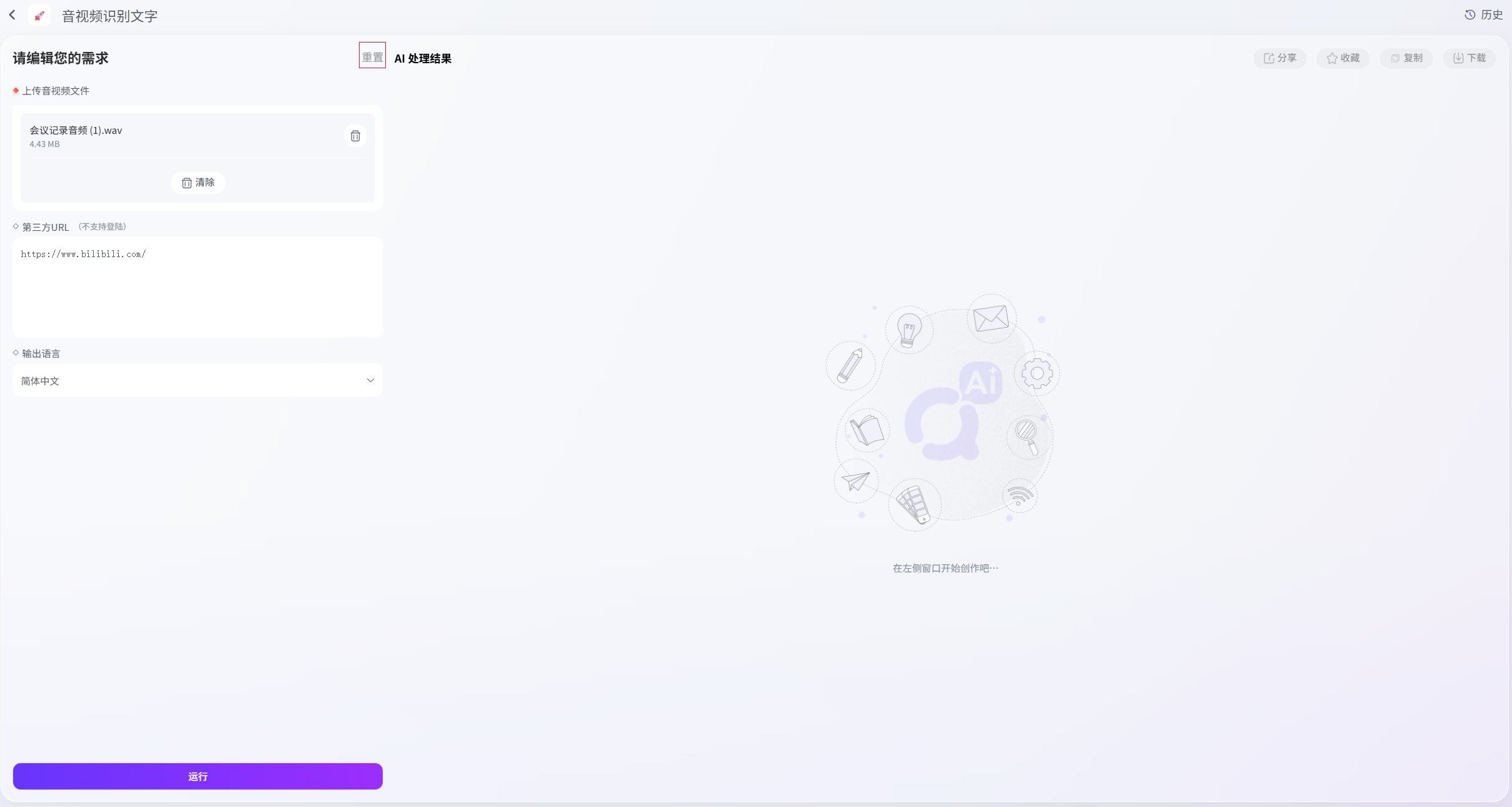
- Click the Reset button on the page.
- The page will clear the current file links, uploaded files, and setting options, reverting to the initial default state, allowing you to begin new operations.
4. Frequently Asked Questions
Q1: What should I do if the uploaded file remains stuck or returns an error?
A1: Please verify that the file format is video or audio. Additionally, confirm whether the file is corrupted by attempting to play it using a local media player. If the file is excessively large, it is recommended to compress it before retrying.
Q2: Why does the system display "Unable to Parse" after pasting a third-party URL?
A2: Please verify whether the link is publicly accessible. If the link originates from platforms such as YouTube or Bilibili and involves copyright restrictions or login barriers, the system may be unable to crawl it. Please attempt to download the video and utilize the local upload function instead.
Q3: Is simultaneous uploading of multiple files for batch processing supported?
A3: According to the current version description, a single task primarily targets a single file or a single link. To process multiple files, please click "Reset" after completing one task, then proceed with the next.
5. Summary
This intelligent audio and video transcription tool converts complex speech information into structured text data through a simple four-step process (Upload/Link -> Select Language -> Run -> Share/Download). Whether organizing lengthy meeting minutes or extracting subtitles from video courses, it significantly enhances your operational efficiency. During actual usage, please pay attention to the quality of the input source and the public accessibility of URLs to obtain the optimal AI processing experience.