

User Manual for the Member Operation Plan Generation System
1. Product Overview
This system is an intelligent auxiliary tool designed specifically for APP and mini-program operations personnel, aiming to address pain points in traditional operations such as cumbersome manual calculations and a lack of data support for strategy formulation. Through intelligent algorithms, the system can automatically calculate the optimal ratio of consumption points, design coupon redemption schemes, and plan lottery budgets based on business scenarios input by users. This assists operations personnel in precisely controlling costs and achieving efficient customer acquisition and activation.
The core function of the system lies in "knowledge conversion," transforming complex business logic into actionable operation plans. Users only need to input basic business parameters (such as brand scenario, membership goals, acquisition methods, etc.), and the system will generate a complete, well-strategized master plan for member operations with a single click.
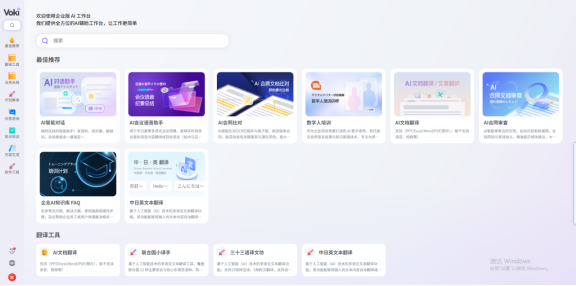
2. Preliminary Preparation and System Login
Before using this system to generate member operation plans, please ensure your device is connected to the internet and access the system using a recommended browser (such as Chrome or Edge) to guarantee the best experience. Please follow the steps below to log in:
-
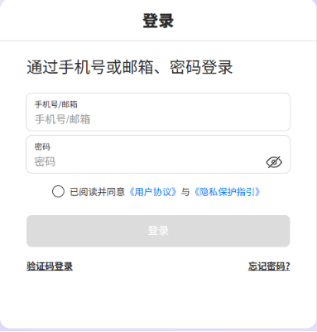
Open Browser: Launch the browser application and enter the official login address in the address bar:
https://aihub.natec.cn/#/login - Account and Password Login: In the designated input fields on the login page, accurately enter your registered account and password.
- Read and Check Agreements: Please carefully read the "User Agreement" and "Privacy Protection Guidelines." After confirming there are no errors, check the box labeled "I have read and agree to the 'User Agreement' and 'Privacy Protection Guidelines'".
- Complete Login: Click the blue "Login" button. The system will verify your identity information. Upon successful verification, the page will automatically redirect to the workspace.
3. Operational Procedures
This chapter guides you through creating and obtaining a complete member operation plan via the system. Please complete the following operations in order:
3.1 Fill in Business Requirements
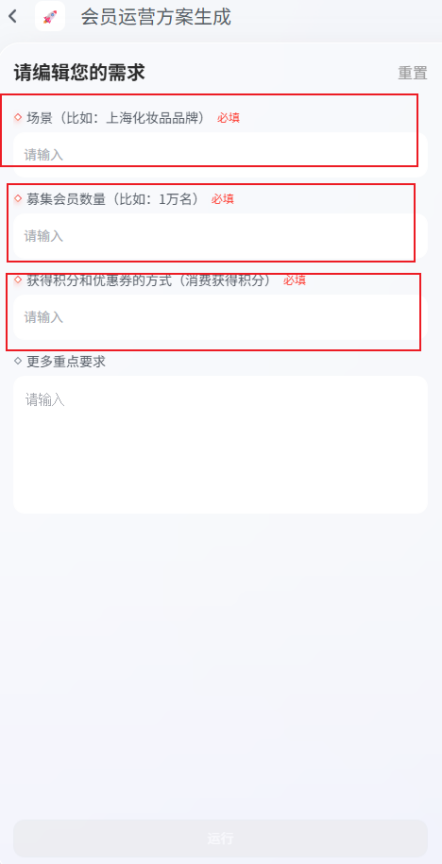
After entering the workspace, locate the "New Plan" section and fill in the following key information according to your actual business situation:
- Business Scenario: Enter the specific operation scenario. For example, input "Shanghai Cosmetics Brand".
- Acquisition Target: Set the expected membership quantity target. For example, input "10,000 members".
- Benefit Acquisition Method: Define how users obtain points or coupons. For example, select or input "Earn points through consumption".
- Other Key Requirements: If necessary, optionally provide additional details regarding activity formats, budget constraints, or special rules.
3.2 Generate Plan
After confirming that the above information is correct, click the "Run" or "Generate" button on the interface. The system will begin intelligent calculation and plan drafting based on the conditions you provided.
3.3 Retrieve and Manage Results
Please note the following points during and after the plan generation process:
- Exception Handling: If the page freezes, displays an error, or if the generation time is excessively long during the process, please try reopening the page. There is no need to worry about data loss; unfinished generation tasks will continue to run in the background, and results will be synchronized and saved once generated.
- Result Notification: Upon completion of the plan generation, the system will automatically send an email notification to your bound email address. Please pay attention to check it.
- History Records: All generation results will be saved in the system's "History Records" module, which you can view at any time by logging in.
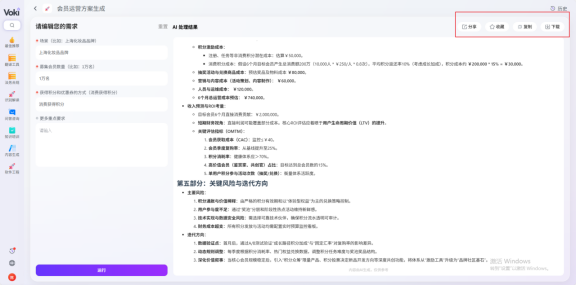
- Result Operations: On the result detail page, you can conveniently perform share, bookmark, copy, or download operations on the generated plan to facilitate team collaboration or local archiving.
4. Frequently Asked Questions
Q1: After clicking generate, how long does it take for the system to show "Processing"? A: The generation time depends on the complexity of the requirements you filled in. Typically, the system will complete the task within seconds to a few minutes. If the waiting time is too long, it is recommended to refresh the page or re-enter; the results will not be lost.
Q2: If I accidentally close the browser, will the plan being generated be lost? A: No. Unfinished generation results will be saved in the history records once the generation is completed later. You can log back into the system to view them at your convenience.
Q3: Can I modify the content of a generated plan? A: Generated plans support copying and downloading. You can copy the content into a document editor to make further fine-tuning and improvements based on actual business needs.
Q4: What business scenarios does the system support for plan generation? A: This system has strong versatility and supports various scenarios requiring point or coupon-based member operations, including but not limited to e-commerce retail (such as cosmetics, apparel), lifestyle services, and APP applications.
5. Summary
This Member Operation Plan Generation System significantly simplifies the planning work of operations personnel through intelligent parameter configuration and automatic generation functions. From requirement entry to plan output, the entire process is designed to ensure users can quickly obtain precise and executable operation strategies. During use, if any technical issues arise, please refer to the Frequently Asked Questions above or contact the system administrator. Proper utilization of this system will effectively improve your work efficiency and activity conversion rates.