

User Manual for the Copywriting Expansion Agent
1. Product Overview
This agent is a professional intelligent document generation and expansion tool designed to assist users in transforming descriptive content regarding products or services into detailed, vivid, and professional copy. By deeply understanding the raw information provided by the user, the system automatically expands textual details and optimizes linguistic expression, thereby reducing user writing costs and enhancing content quality.
The core objective of this system is to address common pain points encountered by users in content creation, such as "insufficient expression" and "lack of detail." It ensures that the final output features a complete structure, rigorous logic, and precise language, meeting documentation requirements across various business scenarios.

2. Preliminary Preparation and System Login
Before utilizing this system for copywriting expansion, please ensure you have an effective network environment and valid system access credentials. The detailed login procedure is as follows:
-
Launch Browser
Initiate a mainstream web browser (e.g., Chrome, Edge, Firefox, etc.) on your computer terminal and enter the official login URL in the address bar:
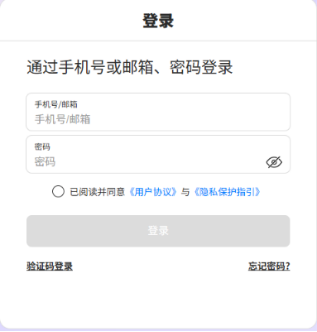
https://aihub.natec.cn/#/login - Account and Password Login In the designated input fields on the login page, accurately enter your system account and the corresponding password.
- Agree to Terms Read and confirm the relevant content of the "User Agreement" and "Privacy Protection Guidelines," then check the box labeled "I have read and agree to the 'User Agreement' and 'Privacy Protection Guidelines'".
- Log In to System Click the blue "Login" button. The system will verify your identity information. Upon successful verification, please wait patiently for the page to automatically redirect to the workspace interface.
3. Operational Workflow
Upon successful login, you may commence using the agent for copywriting expansion. The core operational workflow is as follows:
3.1 Accessing the Functional Module
Within the workspace interface, locate the functional entry related to "Copywriting Expansion" or "Intelligent Writing" and click to enter the operation interface.
3.2 Inputting Content for Expansion
In the text input area of the system, enter the original copy requiring expansion.
- Ensure that the inputted raw information is clear and accurate, containing the core points you wish to retain.
- You may input product function descriptions, service introduction outlines, or any paragraphs requiring refinement.

3.3 Generation and Result Retrieval
After completing the input, click the "Generate" or "Start Expansion" button. The system will begin processing your request.
Important Instructions Regarding the Generation Process:
- Status Monitoring: The system will automatically perform text analysis and expansion.
- Exception Handling: If issues arise during the operation, or if the generation time exceeds expectations, it is recommended that you directly close and reopen the page. The system possesses breakpoint resumption and background processing capabilities; unfinished generation results will be automatically saved to your "History Records" upon completion and will not be lost.
- Result Notification: Once the copywriting generation task is completed, the system will send a notification via the bound email address to remind you to view the results.

3.4 Viewing History Records
For tasks that are either completed or incomplete, you may click the "History Records" option in the sidebar to view all past generation statuses and result documents.

4. Frequently Asked Questions
Q1: After clicking the generate button, the page remains unresponsive for an extended period and stays in a loading state. What should I do? A: This may be caused by network fluctuations or high server load. Please do not repeatedly click the button. You may directly close the current tab and re-open the system page. Your task remains in the backend queue; once completed, it will be stored in the history records, and you will be notified via email.
Q2: How can I know if my copy has finished generating? A: There is no need to remain at the page waiting. The system is configured with an automatic notification mechanism; once generation is complete, the system will send a notification email to your bound email address. Additionally, you may log in to the system at any time to check the task status within "History Records."
Q3: If I accidentally close the browser, will the previous generation results be lost? A: No, they will not be lost. The system automatically saves all generation tasks. You simply need to log in again, navigate to the "History Records" section, and you will be able to locate and view or download previously unfinished or completed results.
5. Summary
This manual provides a detailed introduction to the usage of the Copywriting Expansion Agent, covering the entire user operational path from preparation for system login to specific copy input, generation, and exception handling. By adhering to this guide, you can efficiently utilize the system to transform brief descriptions into high-quality professional copy.
Please fully leverage the system's "History Records" and "Email Notification" features to obtain a smoother and more stable user experience. Should you have further inquiries, it is recommended to refer to the help documentation within the system or contact technical support.